 WinZip
A guide to uninstall WinZip from your computer
WinZip is a computer program. This page holds details on how to remove it from your computer. It is developed by WinZip Computing LP. Go over here where you can find out more on WinZip Computing LP. Please open HTTP://www.winzip.com/wzgate.cgi?lang=ES&url=www.winzip.com if you want to read more on WinZip on WinZip Computing LP's website. Usually the WinZip program is found in the C:\ARCHIV~1\WINZIP directory, depending on the user's option during install. WinZip's full uninstall command line is C:\Archivos de programa\WinZip\WINZIP32.EXE. WINZIP32.EXE is the WinZip's primary executable file and it occupies circa 4.08 MB (4280320 bytes) on disk.WinZip is composed of the following executables which occupy 5.46 MB (5723136 bytes) on disk:
- WINZIP32.EXE (4.08 MB)
- WZMSG.EXE (101.00 KB)
- WZQKPICK.EXE (380.00 KB)
- WZSEPE32.EXE (404.00 KB)
- WZSESS32.EXE (276.00 KB)
- WZSRVR32.EXE (248.00 KB)
This web page is about WinZip version 11.07347 alone. You can find below info on other application versions of WinZip:
...click to view all...
After the uninstall process, the application leaves leftovers on the PC. Part_A few of these are listed below.
You will find in the Windows Registry that the following data will not be cleaned; remove them one by one using regedit.exe:
- HKEY_CLASSES_ROOT\*\shellex\ContextMenuHandlers\WinZip
- HKEY_CLASSES_ROOT\Directory\shellex\ContextMenuHandlers\WinZip
- HKEY_CLASSES_ROOT\Directory\shellex\DragDropHandlers\WinZip
- HKEY_CLASSES_ROOT\Drive\shellex\DragDropHandlers\WinZip
- HKEY_CLASSES_ROOT\Folder\shellex\ContextMenuHandlers\WinZip
- HKEY_CLASSES_ROOT\Folder\shellex\DragDropHandlers\WinZip
- HKEY_CLASSES_ROOT\WinZip
- HKEY_CURRENT_USER\Software\Nico Mak Computing\WinZip
- HKEY_CURRENT_USER\Software\WinZip Computing
- HKEY_LOCAL_MACHINE\Software\Microsoft\Windows\CurrentVersion\Uninstall\WinZip
- HKEY_LOCAL_MACHINE\Software\Nico Mak Computing\WinZip
A way to delete WinZip from your computer with the help of Advanced Uninstaller PRO
WinZip is a program released by the software company WinZip Computing LP. Frequently, computer users choose to remove this program. This is hard because performing this by hand requires some experience regarding Windows internal functioning. The best SIMPLE solution to remove WinZip is to use Advanced Uninstaller PRO. Here is how to do this:1. If you don't have Advanced Uninstaller PRO already installed on your system, install it. This is a good step because Advanced Uninstaller PRO is one of the best uninstaller and all around utility to maximize the performance of your system.
DOWNLOAD NOW
- navigate to Download Link
- download the setup by clicking on the green DOWNLOAD button
- install Advanced Uninstaller PRO
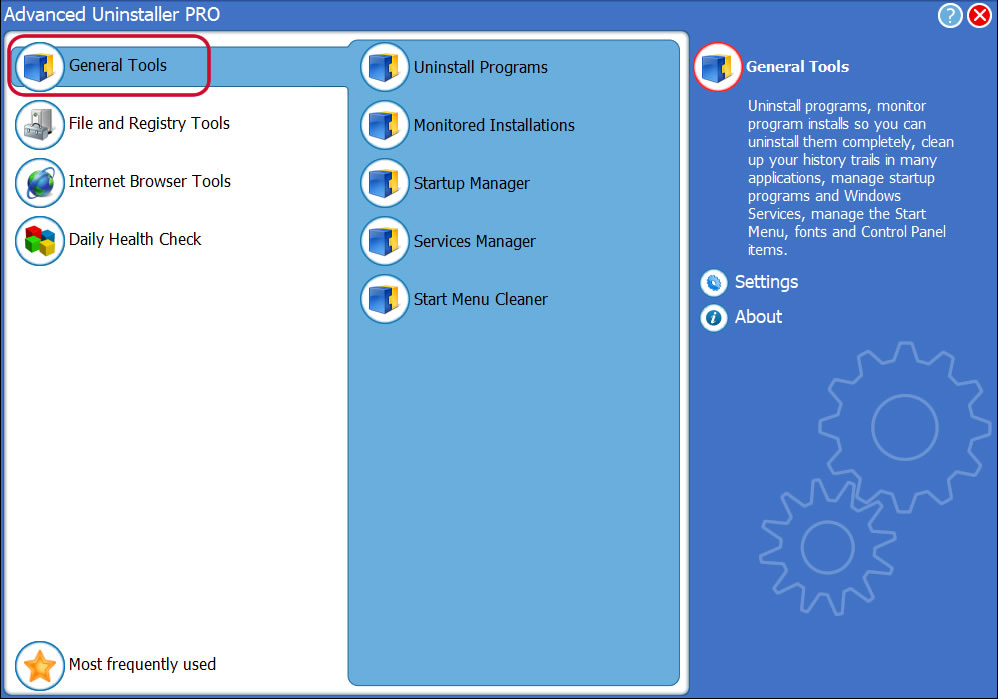
3. Press the General Tools category
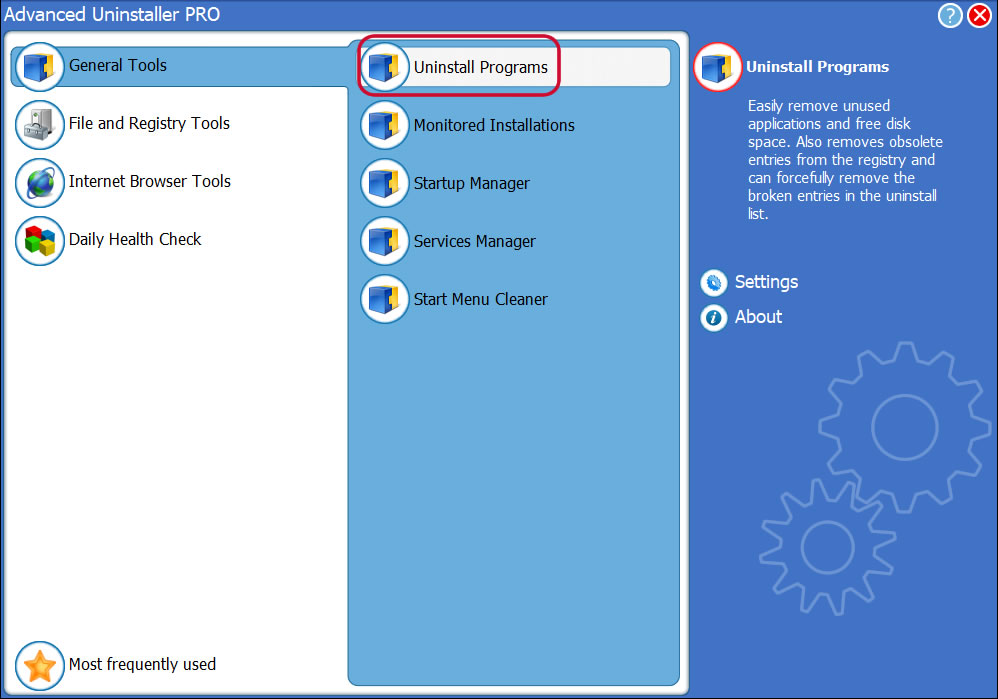
4. Press the Uninstall Programs tool
5. All the applications installed on your computer will be shown to you
6. Scroll the list of applications until you locate WinZip or simply click the Search field and type in "WinZip". If it is installed on your PC the WinZip app will be found automatically. Notice that after you click WinZip in the list of apps, some information about the application is available to you:
- Star rating (in the lower left corner). This tells you the opinion other users have about WinZip, from "Highly recommended" to "Very dangerous".
- Opinions by other users - Press the Read reviews button.
- Technical information about the application you want to remove, by clicking on the Properties button.
- The web site of the application is: HTTP://www.winzip.com/wzgate.cgi?lang=ES&url=www.winzip.com
- The uninstall string is: C:\Archivos de programa\WinZip\WINZIP32.EXE
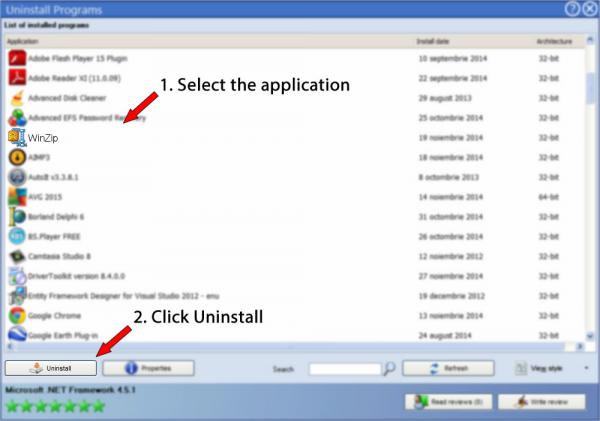
8. After removing WinZip, Advanced Uninstaller PRO will ask you to run a cleanup. Press Next to start the cleanup. All the items of WinZip which have been left behind will be found and you will be able to delete them. By uninstalling WinZip with Advanced Uninstaller PRO, you are assured that no registry items, files or directories are left behind on your disk.
Your system will remain clean, speedy and able to serve you properly.
Geographical user distribution


Disclaimer
This page is not a piece of advice to remove WinZip by WinZip Computing LP from your PC, nor are we saying that WinZip by WinZip Computing LP is not a good application. This page simply contains detailed info on how to remove WinZip supposing you decide this is what you want to do. The information above contains registry and disk entries that Advanced Uninstaller PRO stumbled upon and classified as "leftovers" on other users' PCs.
2016-07-06 / Written by Dan Armano for Advanced Uninstaller PRO
follow @danarmLast update on: 2016-07-05 21:01:10.767