 Realtek Ethernet Controller Driver
How to uninstall Realtek Ethernet Controller Driver from your system
Realtek Ethernet Controller Driver is a Windows program. Read below about how to remove it from your computer. The Windows release was created by Realtek. Check out here where you can find out more on Realtek. More details about Realtek Ethernet Controller Driver can be found at http://www.realtek.com. The application is often placed in the C:\Program Files (x86)\Realtek\NICDRV_8169 folder. Keep in mind that this location can vary depending on the user's decision. Realtek Ethernet Controller Driver's full uninstall command line is C:\Program Files (x86)\InstallShield Installation Information\{8833FFB6-5B0C-4764-81AA-06DFEED9A476}\setup.exe -runfromtemp -l0x0409 -removeonly. The application's main executable file is named RTINSTALLER64.EXE and it has a size of 180.60 KB (184936 bytes).The executables below are part of Realtek Ethernet Controller Driver. They occupy an average of 180.60 KB (184936 bytes) on disk.
- RTINSTALLER64.EXE (180.60 KB)
This page is about Realtek Ethernet Controller Driver version 1.00.0029 alone. For other Realtek Ethernet Controller Driver versions please click below:
- 7.55.314.2012
- 8.37.1119.2014
- 10.74.1128.2024
- 7.4.713.2009
- 7.110.627.2017
- 8.088.0811.2021
- 7.38.113.2011
- 1.00.0019
- 7.17.304.2010
- 7.114.1003.2017
- 6.247.222.2011
- 7.96.826.2015
- 11.24.0318.2025
- 6.241.623.2010
- 8.7.1025.2012
- 10.18.526.2017
- 10.4.813.2015
- 7.112.811.2017
- 11.1.0714.2021
- 7.100.422.2016
- 7.130.212.2020
- 7.115.1208.2017
- 7.9.1105.2009
- 8.3.730.2012
- 7.70.314.2013
- 11.22.1118.2024
- 10.47.121.2021
- 10.6.1001.2015
- 10.9.422.2016
- 7.23.623.2010
- 10.7.107.2016
- 7.105.123.2017
- 10.16.323.2017
- 7.107.323.2017
- 10.15.307.2017
- 7.26.902.2010
- 6.248.427.2011
- 8.13.314.2013
- 11.4.1201.2021
- 6.244.1111.2010
- 7.133.526.2020
- 7.35.1206.2010
- 6.221.424.2009
- 10.36.701.2019
- 7.72.410.2013
- 10.4.814.2015
- 7.51.116.2012
- 7.141.511.2021
- 11.0.2.1
- 7.32.1111.2010
- 8.15.410.2013
- 8.33.529.2014
- 8.12.304.2013
- 1.00.0018
- 7.11.1127.2009
- 7.74.815.2013
- 7.5.730.2009
- 7.7.1002.2009
- 7.41.216.2011
- 8.36.826.2014
- 7.36.1224.2010
- 7.47.706.2011
- 7.116.119.2018
- 8.50.1223.2016
- 8.34.617.2014
- 7.67.1226.2012
- 7.40.126.2011
- 7.37.1229.2010
- 10.052.0903.2021
- 11.9.0614.2022
- 10.2.703.2015
- 8.27.225.2014
- 7.6.820.2009
- 106.4.317.2014
- 8.62.119.2018
- 1166.001.0714.2021
- 8.44.107.2016
- 11.12.0320.2023
- 7.8.1023.2009
- 7.75.827.2013
- 10.45.928.2020
- 1125.21.903.2024
- 8.4.907.2012
- 7.86.508.2014
- 10.49.413.2021
- 11.21.0903.2024
- 8.69.1206.2018
- 10.37.1028.2019
- 7.65.1025.2012
- 10.1
- 8.84.121.2021
- 8.58.811.2017
- 7.54.309.2012
- 7.117.328.2018
- 11.19.0702.2024
- 8.80.723.2020
- 8.20.815.2013
- 10.3.723.2015
- 1.00.0030
- 8.59.914.2017
Some files, folders and Windows registry data will not be deleted when you are trying to remove Realtek Ethernet Controller Driver from your computer.
You should delete the folders below after you uninstall Realtek Ethernet Controller Driver:
- C:\Program Files\Realtek\NICDRV_8169
Files remaining:
- C:\Program Files\Realtek\NICDRV_8169\ICON\remove.ico
- C:\Program Files\Realtek\NICDRV_8169\InstallLog.txt
- C:\Program Files\Realtek\NICDRV_8169\RTINSTALLER32.EXE
- C:\Program Files\Realtek\NICDRV_8169\RTInstaller64.dat
Registry that is not uninstalled:
- HKEY_LOCAL_MACHINE\Software\Microsoft\Windows\CurrentVersion\Uninstall\{8833FFB6-5B0C-4764-81AA-06DFEED9A476}
Open regedit.exe to remove the values below from the Windows Registry:
- HKEY_LOCAL_MACHINE\Software\Microsoft\Windows\CurrentVersion\Uninstall\{8833FFB6-5B0C-4764-81AA-06DFEED9A476}\DisplayIcon
- HKEY_LOCAL_MACHINE\Software\Microsoft\Windows\CurrentVersion\Uninstall\{8833FFB6-5B0C-4764-81AA-06DFEED9A476}\InstallLocation
- HKEY_LOCAL_MACHINE\Software\Microsoft\Windows\CurrentVersion\Uninstall\{8833FFB6-5B0C-4764-81AA-06DFEED9A476}\LogFile
- HKEY_LOCAL_MACHINE\Software\Microsoft\Windows\CurrentVersion\Uninstall\{8833FFB6-5B0C-4764-81AA-06DFEED9A476}\ModifyPath
A way to delete Realtek Ethernet Controller Driver from your computer using Advanced Uninstaller PRO
Realtek Ethernet Controller Driver is a program offered by Realtek. Sometimes, people choose to erase it. Sometimes this can be troublesome because uninstalling this by hand requires some know-how regarding removing Windows programs manually. The best QUICK approach to erase Realtek Ethernet Controller Driver is to use Advanced Uninstaller PRO. Take the following steps on how to do this:1. If you don't have Advanced Uninstaller PRO on your PC, install it. This is a good step because Advanced Uninstaller PRO is a very useful uninstaller and all around utility to maximize the performance of your system.
DOWNLOAD NOW
- navigate to Download Link
- download the setup by clicking on the DOWNLOAD button
- install Advanced Uninstaller PRO
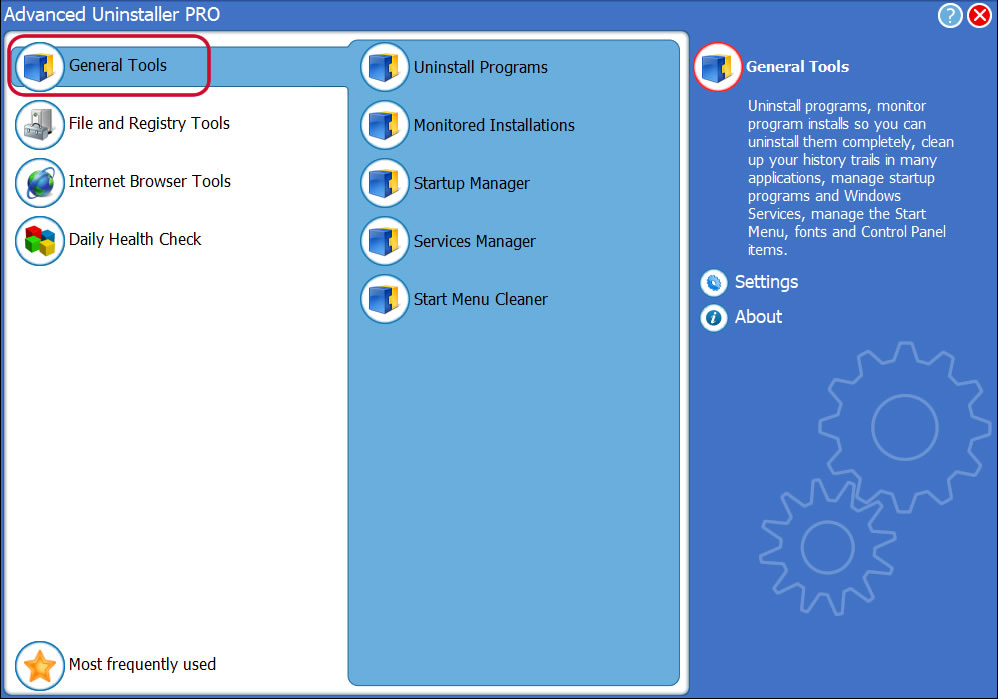
3. Click on the General Tools category
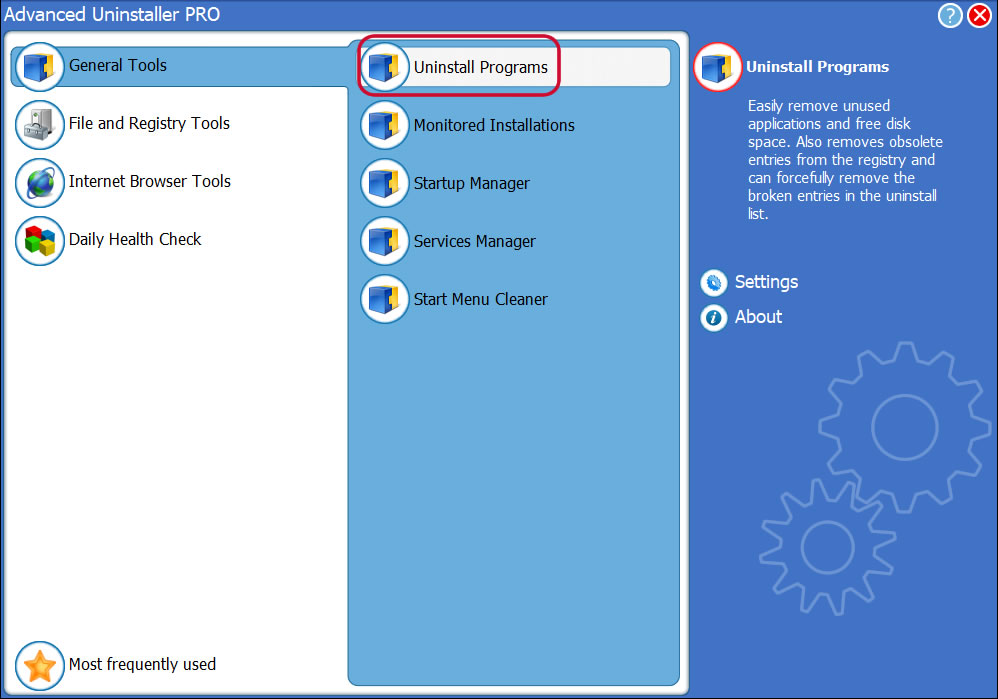
4. Press the Uninstall Programs tool
5. All the programs existing on your computer will be made available to you
6. Scroll the list of programs until you locate Realtek Ethernet Controller Driver or simply click the Search feature and type in "Realtek Ethernet Controller Driver". If it is installed on your PC the Realtek Ethernet Controller Driver app will be found automatically. Notice that when you click Realtek Ethernet Controller Driver in the list of programs, the following information regarding the application is shown to you:
- Safety rating (in the lower left corner). The star rating tells you the opinion other users have regarding Realtek Ethernet Controller Driver, from "Highly recommended" to "Very dangerous".
- Reviews by other users - Click on the Read reviews button.
- Technical information regarding the app you wish to remove, by clicking on the Properties button.
- The software company is: http://www.realtek.com
- The uninstall string is: C:\Program Files (x86)\InstallShield Installation Information\{8833FFB6-5B0C-4764-81AA-06DFEED9A476}\setup.exe -runfromtemp -l0x0409 -removeonly
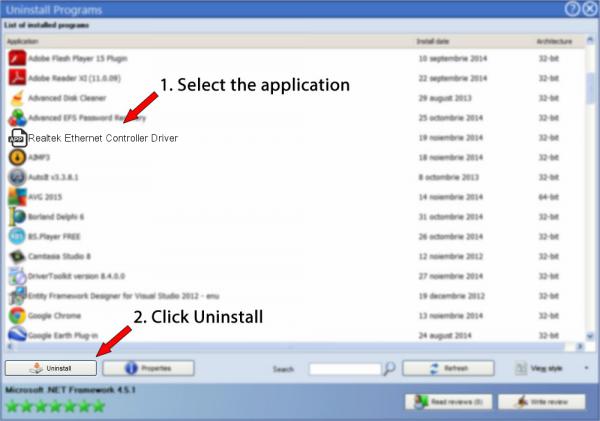
8. After uninstalling Realtek Ethernet Controller Driver, Advanced Uninstaller PRO will ask you to run a cleanup. Click Next to go ahead with the cleanup. All the items that belong Realtek Ethernet Controller Driver that have been left behind will be found and you will be asked if you want to delete them. By removing Realtek Ethernet Controller Driver using Advanced Uninstaller PRO, you are assured that no registry entries, files or directories are left behind on your PC.
Your computer will remain clean, speedy and able to run without errors or problems.
Geographical user distribution


Disclaimer
This page is not a piece of advice to remove Realtek Ethernet Controller Driver by Realtek from your computer, nor are we saying that Realtek Ethernet Controller Driver by Realtek is not a good application. This text simply contains detailed instructions on how to remove Realtek Ethernet Controller Driver supposing you decide this is what you want to do. Here you can find registry and disk entries that other software left behind and Advanced Uninstaller PRO stumbled upon and classified as "leftovers" on other users' PCs.
2016-06-20 / Written by Daniel Statescu for Advanced Uninstaller PRO
follow @DanielStatescuLast update on: 2016-06-20 18:45:38.423