 Sound Blaster Recon3D PCIe
A way to uninstall Sound Blaster Recon3D PCIe from your system
Sound Blaster Recon3D PCIe is a software application. This page holds details on how to uninstall it from your computer. It was coded for Windows by Creative Technology Limited. You can read more on Creative Technology Limited or check for application updates here. More data about the program Sound Blaster Recon3D PCIe can be seen at http://www.creative.com. Sound Blaster Recon3D PCIe is frequently set up in the C:\Program Files (x86)\Creative\Sound Blaster Recon3D PCIe directory, regulated by the user's option. You can uninstall Sound Blaster Recon3D PCIe by clicking on the Start menu of Windows and pasting the command line MsiExec.exe /X{E9DF9D95-BF8F-4264-B54E-988DAD71EE92}. Keep in mind that you might be prompted for admin rights. The application's main executable file is called SBRnPCIe.exe and it has a size of 954.00 KB (976896 bytes).The executables below are part of Sound Blaster Recon3D PCIe. They occupy about 2.24 MB (2347784 bytes) on disk.
- Setup.exe (31.50 KB)
- AddMCat.exe (50.01 KB)
- CtHdaS64.EXE (116.51 KB)
- AddMCat.exe (50.01 KB)
- CtEpDef32.exe (30.51 KB)
- CtHdaSvc.EXE (110.01 KB)
- setup.exe (272.50 KB)
- setup.exe (249.00 KB)
- CTSUAppu.exe (428.72 KB)
- SBRnPCIe.exe (954.00 KB)
The current page applies to Sound Blaster Recon3D PCIe version 1.02.03 alone. You can find below info on other versions of Sound Blaster Recon3D PCIe:
- 1.00.29
- 1.01.26
- 1.00.31
- 1.01.11
- 1.00.20
- 1.01.17
- 1.00.21
- 1.00.07
- 1.01.07
- 1.02.01
- 1.00.09
- 1.01.10
- 1.00.22
- 1.01.19
- 1.00.12
- 1.01.14
- 1.00.23
Some files and registry entries are typically left behind when you remove Sound Blaster Recon3D PCIe.
Directories left on disk:
- C:\Program Files (x86)\Creative\Sound Blaster Recon3D PCIe
- C:\Users\%user%\AppData\Local\Creative\Sound Blaster Recon3D PCIe Control Panel
The files below were left behind on your disk when you remove Sound Blaster Recon3D PCIe:
- C:\Program Files (x86)\Creative\Sound Blaster Recon3D PCIe\Program\Driver\AMD64\AddMCat.exe
- C:\Program Files (x86)\Creative\Sound Blaster Recon3D PCIe\Program\Driver\AMD64\ctDco64.dll
- C:\Program Files (x86)\Creative\Sound Blaster Recon3D PCIe\Program\Driver\AMD64\ctHda.sys
- C:\Program Files (x86)\Creative\Sound Blaster Recon3D PCIe\Program\Driver\AMD64\CtHdaC64.DLL
- C:\Program Files (x86)\Creative\Sound Blaster Recon3D PCIe\Program\Driver\AMD64\CtHdaS64.EXE
- C:\Program Files (x86)\Creative\Sound Blaster Recon3D PCIe\Program\Driver\AMD64\ctHDb.sys
- C:\Program Files (x86)\Creative\Sound Blaster Recon3D PCIe\Program\Driver\AMD64\CTHRFX64.dll
- C:\Program Files (x86)\Creative\Sound Blaster Recon3D PCIe\Program\Driver\cthda.cat
- C:\Program Files (x86)\Creative\Sound Blaster Recon3D PCIe\Program\Driver\ctHda.inf
- C:\Program Files (x86)\Creative\Sound Blaster Recon3D PCIe\Program\Driver\ctHda.ini
- C:\Program Files (x86)\Creative\Sound Blaster Recon3D PCIe\Program\Driver\cthda64.cat
- C:\Program Files (x86)\Creative\Sound Blaster Recon3D PCIe\Program\Driver\CTHRFX32.hda
- C:\Program Files (x86)\Creative\Sound Blaster Recon3D PCIe\Program\Driver\CTHRFX64.hda
- C:\Program Files (x86)\Creative\Sound Blaster Recon3D PCIe\Program\Driver\I386\AddMCat.exe
- C:\Program Files (x86)\Creative\Sound Blaster Recon3D PCIe\Program\Driver\I386\ctDco32.dll
- C:\Program Files (x86)\Creative\Sound Blaster Recon3D PCIe\Program\Driver\I386\CtEpDef32.exe
- C:\Program Files (x86)\Creative\Sound Blaster Recon3D PCIe\Program\Driver\I386\ctHda.sys
- C:\Program Files (x86)\Creative\Sound Blaster Recon3D PCIe\Program\Driver\I386\CtHdaCtl.DLL
- C:\Program Files (x86)\Creative\Sound Blaster Recon3D PCIe\Program\Driver\I386\CtHdaSvc.EXE
- C:\Program Files (x86)\Creative\Sound Blaster Recon3D PCIe\Program\Driver\I386\ctHDb.sys
- C:\Program Files (x86)\Creative\Sound Blaster Recon3D PCIe\Program\Driver\I386\CTHRFX32.dll
- C:\Program Files (x86)\Creative\Sound Blaster Recon3D PCIe\Program\Driver\Lang\cthdabrz.reg
- C:\Program Files (x86)\Creative\Sound Blaster Recon3D PCIe\Program\Driver\Lang\cthdachs.reg
- C:\Program Files (x86)\Creative\Sound Blaster Recon3D PCIe\Program\Driver\Lang\cthdacht.reg
- C:\Program Files (x86)\Creative\Sound Blaster Recon3D PCIe\Program\Driver\Lang\cthdadut.reg
- C:\Program Files (x86)\Creative\Sound Blaster Recon3D PCIe\Program\Driver\Lang\cthdaeng.reg
- C:\Program Files (x86)\Creative\Sound Blaster Recon3D PCIe\Program\Driver\Lang\cthdafrn.reg
- C:\Program Files (x86)\Creative\Sound Blaster Recon3D PCIe\Program\Driver\Lang\cthdager.reg
- C:\Program Files (x86)\Creative\Sound Blaster Recon3D PCIe\Program\Driver\Lang\cthdaita.reg
- C:\Program Files (x86)\Creative\Sound Blaster Recon3D PCIe\Program\Driver\Lang\cthdajpn.reg
- C:\Program Files (x86)\Creative\Sound Blaster Recon3D PCIe\Program\Driver\Lang\cthdakor.reg
- C:\Program Files (x86)\Creative\Sound Blaster Recon3D PCIe\Program\Driver\Lang\cthdapol.reg
- C:\Program Files (x86)\Creative\Sound Blaster Recon3D PCIe\Program\Driver\Lang\cthdarus.reg
- C:\Program Files (x86)\Creative\Sound Blaster Recon3D PCIe\Program\Driver\Lang\cthdaspn.reg
- C:\Program Files (x86)\Creative\Sound Blaster Recon3D PCIe\Program\install.bat
- C:\Program Files (x86)\Creative\Sound Blaster Recon3D PCIe\Program\Setup.exe
- C:\Program Files (x86)\Creative\Sound Blaster Recon3D PCIe\Program\Setup.ini
- C:\Program Files (x86)\Creative\Sound Blaster Recon3D PCIe\Program\Support\AMD64\setup.exe
- C:\Program Files (x86)\Creative\Sound Blaster Recon3D PCIe\Program\Support\AMD64\setup.ini
- C:\Program Files (x86)\Creative\Sound Blaster Recon3D PCIe\Program\Support\I386\setup.exe
- C:\Program Files (x86)\Creative\Sound Blaster Recon3D PCIe\Program\Support\I386\setup.ini
- C:\Program Files (x86)\Creative\Sound Blaster Recon3D PCIe\Program\uninstall.bat
- C:\Program Files (x86)\Creative\Sound Blaster Recon3D PCIe\Sound Blaster Recon3D PCIe Control Panel\CTAudEp.dll
- C:\Program Files (x86)\Creative\Sound Blaster Recon3D PCIe\Sound Blaster Recon3D PCIe Control Panel\CTAudEp.rsc
- C:\Program Files (x86)\Creative\Sound Blaster Recon3D PCIe\Sound Blaster Recon3D PCIe Control Panel\CTGetPdt.dll
- C:\Program Files (x86)\Creative\Sound Blaster Recon3D PCIe\Sound Blaster Recon3D PCIe Control Panel\CTLdRsR.rsc
- C:\Program Files (x86)\Creative\Sound Blaster Recon3D PCIe\Sound Blaster Recon3D PCIe Control Panel\CTLoadRs.dll
- C:\Program Files (x86)\Creative\Sound Blaster Recon3D PCIe\Sound Blaster Recon3D PCIe Control Panel\CTMFPlay.dll
- C:\Program Files (x86)\Creative\Sound Blaster Recon3D PCIe\Sound Blaster Recon3D PCIe Control Panel\CTMFSess.dll
- C:\Program Files (x86)\Creative\Sound Blaster Recon3D PCIe\Sound Blaster Recon3D PCIe Control Panel\CTSUAppu.exe
- C:\Program Files (x86)\Creative\Sound Blaster Recon3D PCIe\Sound Blaster Recon3D PCIe Control Panel\CTSUSDKu.dll
- C:\Program Files (x86)\Creative\Sound Blaster Recon3D PCIe\Sound Blaster Recon3D PCIe Control Panel\CTSUUtil.dll
- C:\Program Files (x86)\Creative\Sound Blaster Recon3D PCIe\Sound Blaster Recon3D PCIe Control Panel\de-DE\CTAudEp.rsc.mui
- C:\Program Files (x86)\Creative\Sound Blaster Recon3D PCIe\Sound Blaster Recon3D PCIe Control Panel\de-DE\CTLdRsR.rsc.mui
- C:\Program Files (x86)\Creative\Sound Blaster Recon3D PCIe\Sound Blaster Recon3D PCIe Control Panel\de-DE\SBRnPCIe.resources.dll
- C:\Program Files (x86)\Creative\Sound Blaster Recon3D PCIe\Sound Blaster Recon3D PCIe Control Panel\Demo.wmv
- C:\Program Files (x86)\Creative\Sound Blaster Recon3D PCIe\Sound Blaster Recon3D PCIe Control Panel\en-US\CTAudEp.rsc.mui
- C:\Program Files (x86)\Creative\Sound Blaster Recon3D PCIe\Sound Blaster Recon3D PCIe Control Panel\en-US\CTLdRsR.rsc.mui
- C:\Program Files (x86)\Creative\Sound Blaster Recon3D PCIe\Sound Blaster Recon3D PCIe Control Panel\en-US\SBRnPCIe.resources.dll
- C:\Program Files (x86)\Creative\Sound Blaster Recon3D PCIe\Sound Blaster Recon3D PCIe Control Panel\es-ES\CTAudEp.rsc.mui
- C:\Program Files (x86)\Creative\Sound Blaster Recon3D PCIe\Sound Blaster Recon3D PCIe Control Panel\es-ES\CTLdRsR.rsc.mui
- C:\Program Files (x86)\Creative\Sound Blaster Recon3D PCIe\Sound Blaster Recon3D PCIe Control Panel\es-ES\SBRnPCIe.resources.dll
- C:\Program Files (x86)\Creative\Sound Blaster Recon3D PCIe\Sound Blaster Recon3D PCIe Control Panel\fr-FR\CTAudEp.rsc.mui
- C:\Program Files (x86)\Creative\Sound Blaster Recon3D PCIe\Sound Blaster Recon3D PCIe Control Panel\fr-FR\CTLdRsR.rsc.mui
- C:\Program Files (x86)\Creative\Sound Blaster Recon3D PCIe\Sound Blaster Recon3D PCIe Control Panel\fr-FR\SBRnPCIe.resources.dll
- C:\Program Files (x86)\Creative\Sound Blaster Recon3D PCIe\Sound Blaster Recon3D PCIe Control Panel\HKDetect.dll
- C:\Program Files (x86)\Creative\Sound Blaster Recon3D PCIe\Sound Blaster Recon3D PCIe Control Panel\HookWndU.dll
- C:\Program Files (x86)\Creative\Sound Blaster Recon3D PCIe\Sound Blaster Recon3D PCIe Control Panel\HWAboutU.DLL
- C:\Program Files (x86)\Creative\Sound Blaster Recon3D PCIe\Sound Blaster Recon3D PCIe Control Panel\Interop.CtSndCr.dll
- C:\Program Files (x86)\Creative\Sound Blaster Recon3D PCIe\Sound Blaster Recon3D PCIe Control Panel\it-IT\CTAudEp.rsc.mui
- C:\Program Files (x86)\Creative\Sound Blaster Recon3D PCIe\Sound Blaster Recon3D PCIe Control Panel\it-IT\CTLdRsR.rsc.mui
- C:\Program Files (x86)\Creative\Sound Blaster Recon3D PCIe\Sound Blaster Recon3D PCIe Control Panel\it-IT\SBRnPCIe.resources.dll
- C:\Program Files (x86)\Creative\Sound Blaster Recon3D PCIe\Sound Blaster Recon3D PCIe Control Panel\ja-JP\CTAudEp.rsc.mui
- C:\Program Files (x86)\Creative\Sound Blaster Recon3D PCIe\Sound Blaster Recon3D PCIe Control Panel\ja-JP\CTLdRsR.rsc.mui
- C:\Program Files (x86)\Creative\Sound Blaster Recon3D PCIe\Sound Blaster Recon3D PCIe Control Panel\ja-JP\SBRnPCIe.resources.dll
- C:\Program Files (x86)\Creative\Sound Blaster Recon3D PCIe\Sound Blaster Recon3D PCIe Control Panel\ko-KR\CTAudEp.rsc.mui
- C:\Program Files (x86)\Creative\Sound Blaster Recon3D PCIe\Sound Blaster Recon3D PCIe Control Panel\ko-KR\CTLdRsR.rsc.mui
- C:\Program Files (x86)\Creative\Sound Blaster Recon3D PCIe\Sound Blaster Recon3D PCIe Control Panel\ko-KR\SBRnPCIe.resources.dll
- C:\Program Files (x86)\Creative\Sound Blaster Recon3D PCIe\Sound Blaster Recon3D PCIe Control Panel\MalLgcy.dll
- C:\Program Files (x86)\Creative\Sound Blaster Recon3D PCIe\Sound Blaster Recon3D PCIe Control Panel\mfc100u.dll
- C:\Program Files (x86)\Creative\Sound Blaster Recon3D PCIe\Sound Blaster Recon3D PCIe Control Panel\msvcp100.dll
- C:\Program Files (x86)\Creative\Sound Blaster Recon3D PCIe\Sound Blaster Recon3D PCIe Control Panel\msvcr100.dll
- C:\Program Files (x86)\Creative\Sound Blaster Recon3D PCIe\Sound Blaster Recon3D PCIe Control Panel\nl-NL\CTAudEp.rsc.mui
- C:\Program Files (x86)\Creative\Sound Blaster Recon3D PCIe\Sound Blaster Recon3D PCIe Control Panel\nl-NL\CTLdRsR.rsc.mui
- C:\Program Files (x86)\Creative\Sound Blaster Recon3D PCIe\Sound Blaster Recon3D PCIe Control Panel\nl-NL\SBRnPCIe.resources.dll
- C:\Program Files (x86)\Creative\Sound Blaster Recon3D PCIe\Sound Blaster Recon3D PCIe Control Panel\pl-PL\CTAudEp.rsc.mui
- C:\Program Files (x86)\Creative\Sound Blaster Recon3D PCIe\Sound Blaster Recon3D PCIe Control Panel\pl-PL\CTLdRsR.rsc.mui
- C:\Program Files (x86)\Creative\Sound Blaster Recon3D PCIe\Sound Blaster Recon3D PCIe Control Panel\pl-PL\SBRnPCIe.resources.dll
- C:\Program Files (x86)\Creative\Sound Blaster Recon3D PCIe\Sound Blaster Recon3D PCIe Control Panel\Profile\Action and Adventure.xml
- C:\Program Files (x86)\Creative\Sound Blaster Recon3D PCIe\Sound Blaster Recon3D PCIe Control Panel\Profile\Driving Simulation.xml
- C:\Program Files (x86)\Creative\Sound Blaster Recon3D PCIe\Sound Blaster Recon3D PCIe Control Panel\Profile\Fatal1ty.xml
- C:\Program Files (x86)\Creative\Sound Blaster Recon3D PCIe\Sound Blaster Recon3D PCIe Control Panel\Profile\First Person Shooter.xml
- C:\Program Files (x86)\Creative\Sound Blaster Recon3D PCIe\Sound Blaster Recon3D PCIe Control Panel\Profile\Real Time Strategy.xml
- C:\Program Files (x86)\Creative\Sound Blaster Recon3D PCIe\Sound Blaster Recon3D PCIe Control Panel\pt-BR\CTAudEp.rsc.mui
- C:\Program Files (x86)\Creative\Sound Blaster Recon3D PCIe\Sound Blaster Recon3D PCIe Control Panel\pt-BR\CTLdRsR.rsc.mui
- C:\Program Files (x86)\Creative\Sound Blaster Recon3D PCIe\Sound Blaster Recon3D PCIe Control Panel\pt-BR\SBRnPCIe.resources.dll
- C:\Program Files (x86)\Creative\Sound Blaster Recon3D PCIe\Sound Blaster Recon3D PCIe Control Panel\ru-RU\CTAudEp.rsc.mui
- C:\Program Files (x86)\Creative\Sound Blaster Recon3D PCIe\Sound Blaster Recon3D PCIe Control Panel\ru-RU\CTLdRsR.rsc.mui
- C:\Program Files (x86)\Creative\Sound Blaster Recon3D PCIe\Sound Blaster Recon3D PCIe Control Panel\ru-RU\SBRnPCIe.resources.dll
- C:\Program Files (x86)\Creative\Sound Blaster Recon3D PCIe\Sound Blaster Recon3D PCIe Control Panel\SBAbout.bff
Usually the following registry keys will not be cleaned:
- HKEY_CURRENT_USER\Software\Creative Tech\Audio Endpoint Selection\Sound Blaster Recon3D PCIe Control Panel
- HKEY_CURRENT_USER\Software\Creative Tech\Sound Blaster Recon3D PCIe Control Panel
- HKEY_LOCAL_MACHINE\SOFTWARE\Classes\Installer\Products\59D9FD9EF8FB46245BE489D8DA17EE29
- HKEY_LOCAL_MACHINE\Software\Creative Tech\Installation\Sound Blaster Recon3D PCIe
- HKEY_LOCAL_MACHINE\Software\Creative Tech\Software Installed\Sound Blaster Recon3D PCIe Control Panel
- HKEY_LOCAL_MACHINE\Software\Creative Tech\Sound Blaster Recon3D PCIe Extras
- HKEY_LOCAL_MACHINE\Software\Microsoft\Windows\CurrentVersion\Uninstall\{E9DF9D95-BF8F-4264-B54E-988DAD71EE92}
Additional values that you should clean:
- HKEY_LOCAL_MACHINE\SOFTWARE\Classes\Installer\Products\59D9FD9EF8FB46245BE489D8DA17EE29\ProductName
A way to erase Sound Blaster Recon3D PCIe with the help of Advanced Uninstaller PRO
Sound Blaster Recon3D PCIe is an application offered by Creative Technology Limited. Some people choose to remove this application. This can be hard because doing this by hand requires some advanced knowledge related to Windows internal functioning. One of the best EASY solution to remove Sound Blaster Recon3D PCIe is to use Advanced Uninstaller PRO. Here are some detailed instructions about how to do this:1. If you don't have Advanced Uninstaller PRO already installed on your system, add it. This is good because Advanced Uninstaller PRO is a very potent uninstaller and general utility to optimize your PC.
DOWNLOAD NOW
- go to Download Link
- download the setup by clicking on the green DOWNLOAD NOW button
- install Advanced Uninstaller PRO
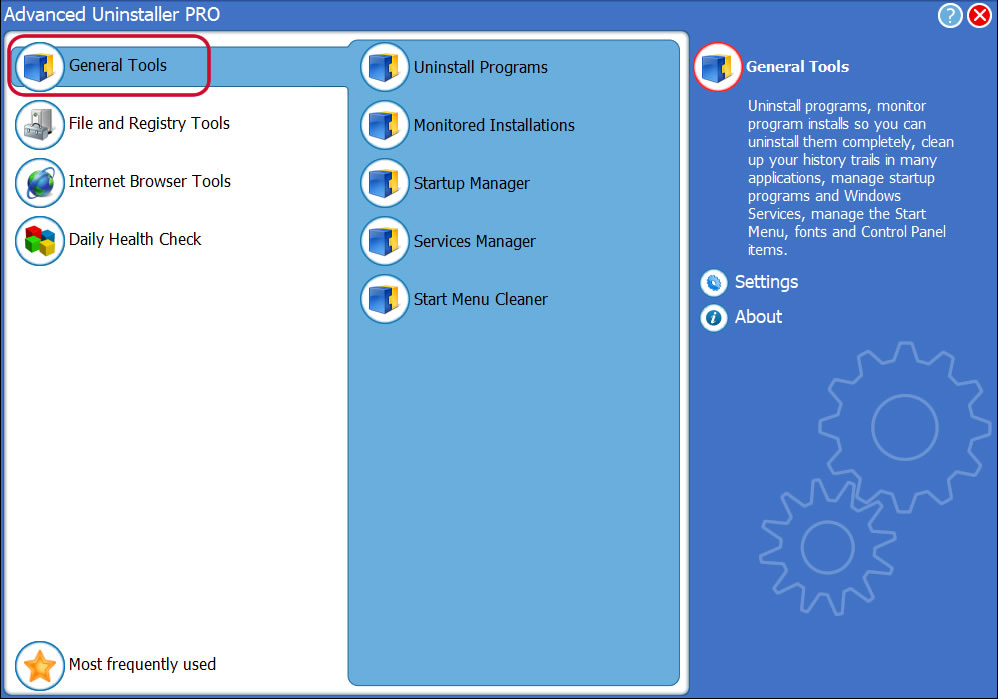
3. Click on the General Tools category
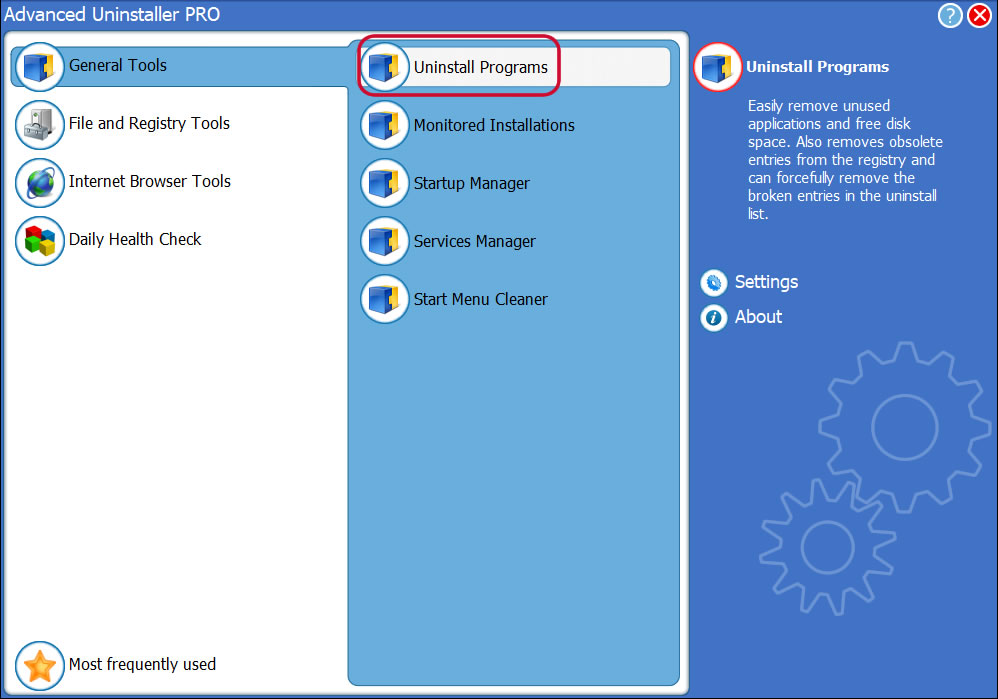
4. Activate the Uninstall Programs feature
5. A list of the programs installed on the computer will appear
6. Scroll the list of programs until you locate Sound Blaster Recon3D PCIe or simply activate the Search feature and type in "Sound Blaster Recon3D PCIe". If it is installed on your PC the Sound Blaster Recon3D PCIe program will be found very quickly. When you select Sound Blaster Recon3D PCIe in the list of apps, the following data about the program is made available to you:
- Safety rating (in the lower left corner). This explains the opinion other people have about Sound Blaster Recon3D PCIe, ranging from "Highly recommended" to "Very dangerous".
- Reviews by other people - Click on the Read reviews button.
- Details about the app you want to remove, by clicking on the Properties button.
- The web site of the application is: http://www.creative.com
- The uninstall string is: MsiExec.exe /X{E9DF9D95-BF8F-4264-B54E-988DAD71EE92}
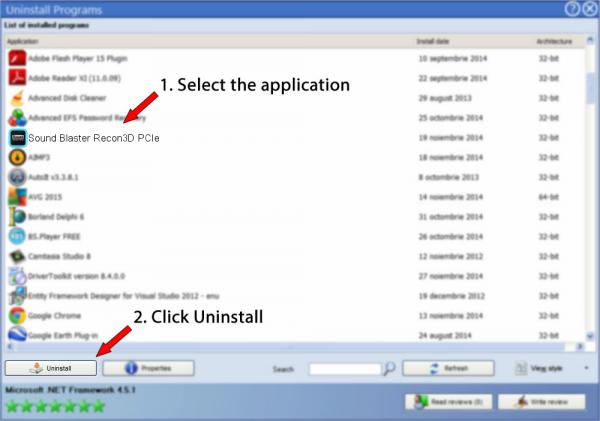
8. After uninstalling Sound Blaster Recon3D PCIe, Advanced Uninstaller PRO will offer to run an additional cleanup. Click Next to proceed with the cleanup. All the items that belong Sound Blaster Recon3D PCIe that have been left behind will be detected and you will be able to delete them. By removing Sound Blaster Recon3D PCIe with Advanced Uninstaller PRO, you can be sure that no Windows registry entries, files or folders are left behind on your system.
Your Windows computer will remain clean, speedy and ready to run without errors or problems.
Geographical user distribution


Disclaimer
The text above is not a recommendation to remove Sound Blaster Recon3D PCIe by Creative Technology Limited from your computer, we are not saying that Sound Blaster Recon3D PCIe by Creative Technology Limited is not a good application for your computer. This page only contains detailed instructions on how to remove Sound Blaster Recon3D PCIe supposing you want to. The information above contains registry and disk entries that Advanced Uninstaller PRO discovered and classified as "leftovers" on other users' computers.
2016-06-23 / Written by Dan Armano for Advanced Uninstaller PRO
follow @danarmLast update on: 2016-06-22 21:27:52.493