 SIMATIC ProSave
A way to uninstall SIMATIC ProSave from your system
SIMATIC ProSave is a Windows application. Read below about how to remove it from your computer. The Windows version was developed by Siemens AG. Go over here where you can read more on Siemens AG. More info about the application SIMATIC ProSave can be found at http://www.siemens.com/automation/service&support. Usually the SIMATIC ProSave application is placed in the C:\Program Files (x86)\Common Files\Siemens\Bin folder, depending on the user's option during setup. The full command line for removing SIMATIC ProSave is C:\Program Files (x86)\Common Files\Siemens\Bin\setupdeinstaller.exe. Keep in mind that if you will type this command in Start / Run Note you may get a notification for admin rights. SIMATIC ProSave's main file takes about 169.78 KB (173856 bytes) and its name is CCAuthorInformation.exe.The executables below are part of SIMATIC ProSave. They occupy about 6.66 MB (6986208 bytes) on disk.
- CCAuthorInformation.exe (169.78 KB)
- CCConfigStudio.exe (797.28 KB)
- CCConfigStudioHost.exe (203.78 KB)
- CCLicenseService.exe (681.28 KB)
- CCOnScreenKeyboard.exe (622.28 KB)
- CCPerfMon.exe (581.39 KB)
- CCRemoteService.exe (136.28 KB)
- CCSecurityMgr.exe (2.01 MB)
- PrtScr.exe (73.28 KB)
- s7hspsvx.exe (56.28 KB)
- setupdeinstaller.exe (1.41 MB)
The information on this page is only about version 16.00.0000 of SIMATIC ProSave. For more SIMATIC ProSave versions please click below:
- 10.00.0000
- 13.00.0100
- 17.00.0001
- 10.00.0100
- 17.00.0000
- 19.00.0004
- 09.00.0400
- 16.00.0001
- 15.01.0000
- 18.00.0101
- 14.00.0000
- 17.00.0008
- 14.00.0102
- 09.00.0300
- 14.00.0100
- 18.00.0105
- 14.00.0001
- 15.00.0000
- 18.00.0100
- 13.00.0000
- 09.00.0000
- 17.00.0009
- 09.00.0100
- 18.00.0000
- 19.00.0005
- 19.00.0000
- 13.00.0002
- 13.00.0105
Some files and registry entries are typically left behind when you uninstall SIMATIC ProSave.
Registry that is not removed:
- HKEY_CLASSES_ROOT\Installer\Assemblies\C:|Program Files (x86)|Common Files|Siemens|bin|CCPdlrtOverlay.dll
- HKEY_LOCAL_MACHINE\Software\Microsoft\Windows\CurrentVersion\Uninstall\{5DC94F18-8FCD-4537-A41B-55E41AF7BD42}
A way to uninstall SIMATIC ProSave with the help of Advanced Uninstaller PRO
SIMATIC ProSave is an application offered by Siemens AG. Frequently, computer users decide to remove this program. This is troublesome because performing this by hand requires some know-how regarding removing Windows programs manually. One of the best QUICK procedure to remove SIMATIC ProSave is to use Advanced Uninstaller PRO. Here is how to do this:1. If you don't have Advanced Uninstaller PRO already installed on your Windows system, install it. This is a good step because Advanced Uninstaller PRO is an efficient uninstaller and general utility to maximize the performance of your Windows computer.
DOWNLOAD NOW
- visit Download Link
- download the setup by pressing the DOWNLOAD NOW button
- set up Advanced Uninstaller PRO
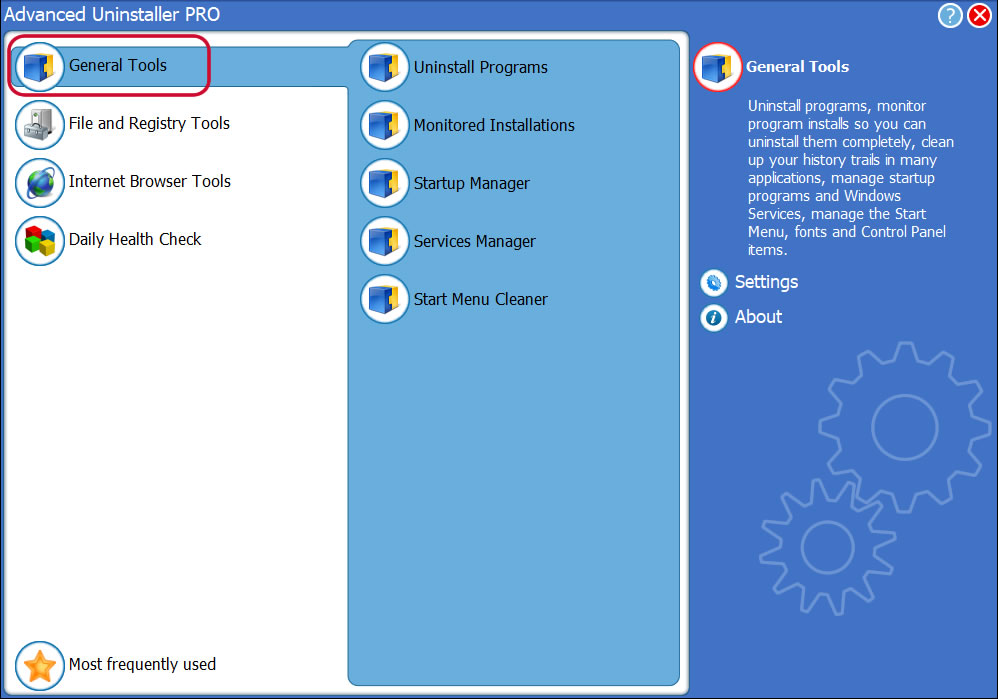
3. Press the General Tools category
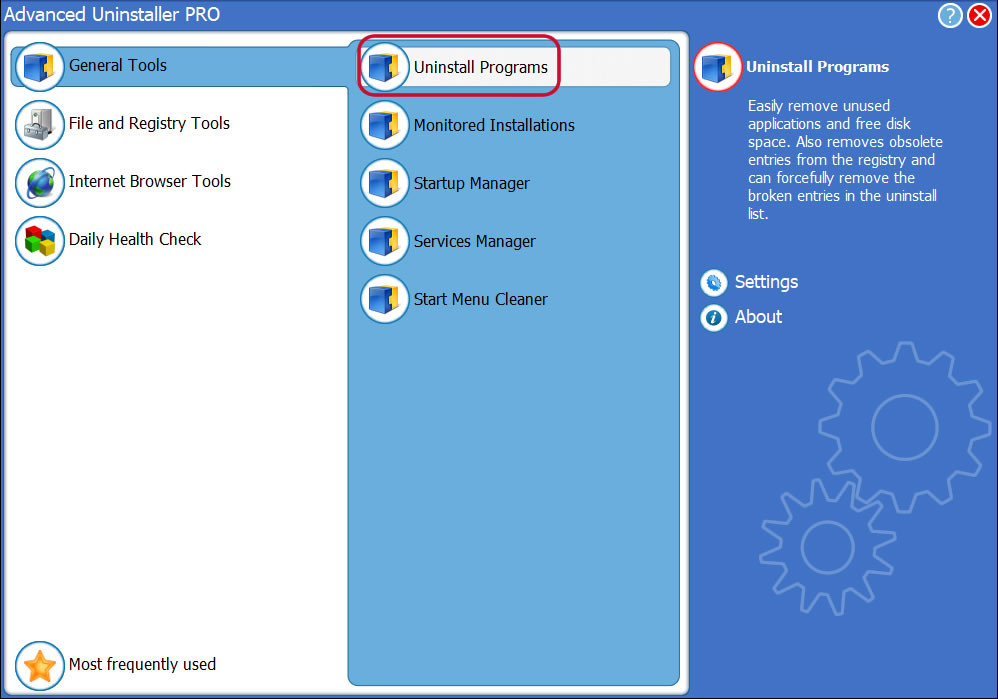
4. Press the Uninstall Programs feature
5. All the applications existing on your PC will be made available to you
6. Scroll the list of applications until you locate SIMATIC ProSave or simply click the Search field and type in "SIMATIC ProSave". If it exists on your system the SIMATIC ProSave application will be found automatically. When you select SIMATIC ProSave in the list , the following data regarding the program is available to you:
- Safety rating (in the left lower corner). This explains the opinion other people have regarding SIMATIC ProSave, from "Highly recommended" to "Very dangerous".
- Reviews by other people - Press the Read reviews button.
- Technical information regarding the app you are about to remove, by pressing the Properties button.
- The publisher is: http://www.siemens.com/automation/service&support
- The uninstall string is: C:\Program Files (x86)\Common Files\Siemens\Bin\setupdeinstaller.exe

8. After uninstalling SIMATIC ProSave, Advanced Uninstaller PRO will offer to run a cleanup. Press Next to perform the cleanup. All the items of SIMATIC ProSave that have been left behind will be detected and you will be asked if you want to delete them. By uninstalling SIMATIC ProSave with Advanced Uninstaller PRO, you are assured that no Windows registry entries, files or directories are left behind on your computer.
Your Windows PC will remain clean, speedy and able to run without errors or problems.
Disclaimer
This page is not a piece of advice to uninstall SIMATIC ProSave by Siemens AG from your PC, we are not saying that SIMATIC ProSave by Siemens AG is not a good application. This page only contains detailed info on how to uninstall SIMATIC ProSave in case you want to. Here you can find registry and disk entries that our application Advanced Uninstaller PRO stumbled upon and classified as "leftovers" on other users' PCs.
2019-12-20 / Written by Andreea Kartman for Advanced Uninstaller PRO
follow @DeeaKartmanLast update on: 2019-12-20 10:14:31.927