 Resposta
A way to uninstall Resposta from your system
This page contains detailed information on how to remove Resposta for Windows. It is produced by Conam - Consultoria em Administração Municipal Ltda. Take a look here for more details on Conam - Consultoria em Administração Municipal Ltda. Please follow http://www.conam.com.br/ if you want to read more on Resposta on Conam - Consultoria em Administração Municipal Ltda's web page. The program is usually located in the C:\Program Files (x86)\Conam\Resposta directory. Take into account that this path can differ depending on the user's decision. C:\Program Files (x86)\Conam\Resposta\unins000.exe is the full command line if you want to uninstall Resposta. The program's main executable file is titled Resposta.exe and occupies 1.93 MB (2019840 bytes).The following executables are installed alongside Resposta. They take about 2.57 MB (2695235 bytes) on disk.
- Resposta.exe (1.93 MB)
- unins000.exe (659.57 KB)
This page is about Resposta version 1.0 only. You can find below a few links to other Resposta releases:
A way to remove Resposta from your PC with Advanced Uninstaller PRO
Resposta is a program offered by Conam - Consultoria em Administração Municipal Ltda. Frequently, users decide to remove this application. Sometimes this can be efortful because removing this by hand requires some know-how related to removing Windows applications by hand. One of the best EASY action to remove Resposta is to use Advanced Uninstaller PRO. Here are some detailed instructions about how to do this:1. If you don't have Advanced Uninstaller PRO on your PC, install it. This is a good step because Advanced Uninstaller PRO is one of the best uninstaller and general utility to optimize your computer.
DOWNLOAD NOW
- visit Download Link
- download the setup by clicking on the DOWNLOAD button
- set up Advanced Uninstaller PRO
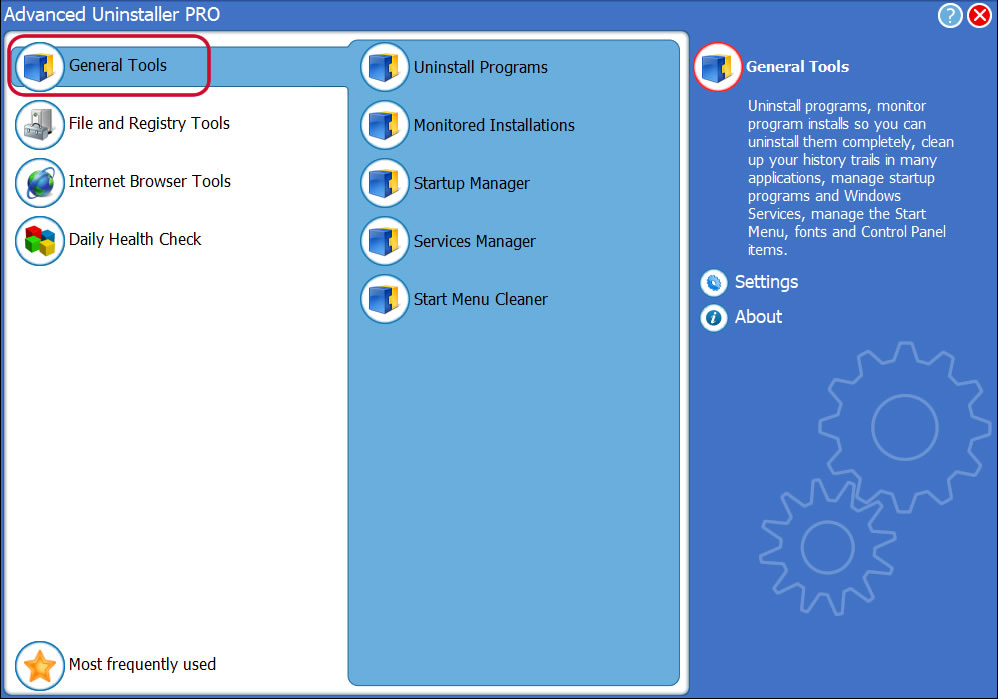
3. Press the General Tools category
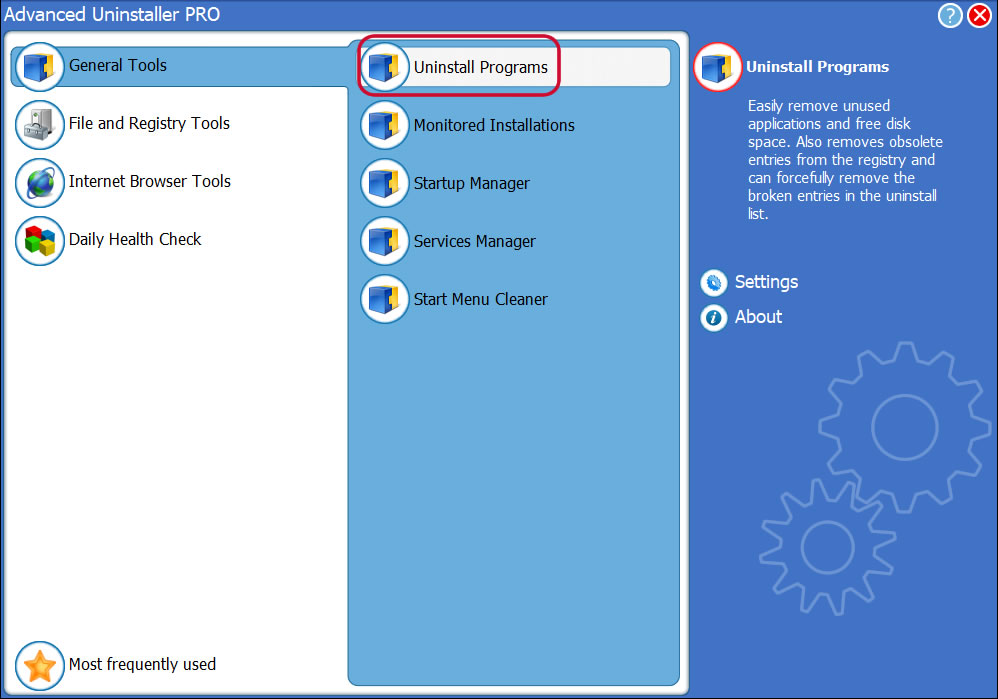
4. Click on the Uninstall Programs feature
5. All the applications existing on your PC will be made available to you
6. Navigate the list of applications until you find Resposta or simply activate the Search field and type in "Resposta". If it exists on your system the Resposta application will be found automatically. After you click Resposta in the list of apps, some data regarding the program is made available to you:
- Star rating (in the lower left corner). The star rating tells you the opinion other users have regarding Resposta, from "Highly recommended" to "Very dangerous".
- Opinions by other users - Press the Read reviews button.
- Details regarding the app you wish to remove, by clicking on the Properties button.
- The publisher is: http://www.conam.com.br/
- The uninstall string is: C:\Program Files (x86)\Conam\Resposta\unins000.exe
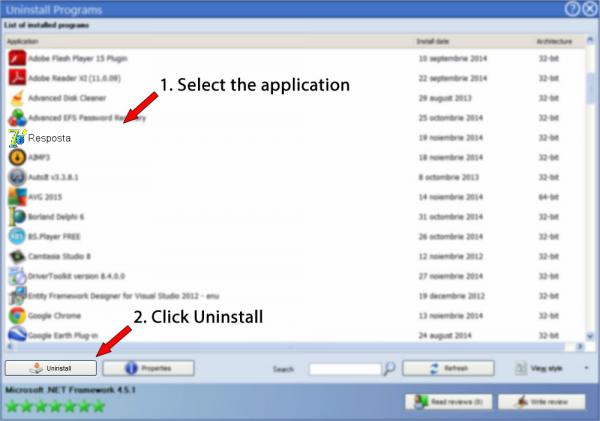
8. After removing Resposta, Advanced Uninstaller PRO will offer to run a cleanup. Click Next to start the cleanup. All the items of Resposta which have been left behind will be found and you will be able to delete them. By uninstalling Resposta using Advanced Uninstaller PRO, you are assured that no Windows registry entries, files or folders are left behind on your system.
Your Windows system will remain clean, speedy and able to run without errors or problems.
Disclaimer
This page is not a recommendation to uninstall Resposta by Conam - Consultoria em Administração Municipal Ltda from your computer, nor are we saying that Resposta by Conam - Consultoria em Administração Municipal Ltda is not a good software application. This page simply contains detailed instructions on how to uninstall Resposta supposing you want to. The information above contains registry and disk entries that Advanced Uninstaller PRO discovered and classified as "leftovers" on other users' PCs.
2017-01-05 / Written by Daniel Statescu for Advanced Uninstaller PRO
follow @DanielStatescuLast update on: 2017-01-05 14:14:39.420