Publishers

Rescue Team 3 Rescue Team 3


A way to uninstall Rescue Team 3 from your PC

Rescue Team 3 is a Windows program. Read below about how to remove it from your PC. The Windows version was created by Foxy Games. Go over here for more info on Foxy Games. You can get more details related to Rescue Team 3 at . Usually the Rescue Team 3 application is installed in the C:\Program Files (x86)\Foxy Games\Rescue Team 3 directory, depending on the user's option during install. The full command line for removing Rescue Team 3 is C:\Program Files (x86)\Foxy Games\Rescue Team 3\uninstall.exe. Keep in mind that if you will type this command in Start / Run Note you may get a notification for admin rights. Rescue Team 3's main file takes about 1.53 MB (1600000 bytes) and its name is RescueTeam3.exe.

The following executables are incorporated in Rescue Team 3. They occupy 2.83 MB (2964992 bytes) on disk.

  • RescueTeam3.exe (1.53 MB)
  • uninstall.exe (1.30 MB)


The information on this page is only about version 1.0 of Rescue Team 3. Rescue Team 3 has the habit of leaving behind some leftovers.

Folders that were found:
  • C:\Games\Rescue Team 3
  • C:\Users\%user%\AppData\Roaming\Microsoft\Windows\Start Menu\Programs\Rescue Team - Planet Savers
  • C:\Users\%user%\AppData\Roaming\Microsoft\Windows\Start Menu\Programs\Rescue Team 2
  • C:\Users\%user%\AppData\Roaming\Microsoft\Windows\Start Menu\Programs\Rescue Team 3

The files below are left behind on your disk when you remove Rescue Team 3:
  • C:\Games\Rescue Team 3\awstats.dll
  • C:\Games\Rescue Team 3\bass.dll
  • C:\Games\Rescue Team 3\d3dx9.dll
  • C:\Games\Rescue Team 3\data\conf\autoexec.lua
  • C:\Games\Rescue Team 3\data\conf\loading.lua
  • C:\Games\Rescue Team 3\data\conf\locale_en.lua
  • C:\Games\Rescue Team 3\data\conf\locale_ru.lua
  • C:\Games\Rescue Team 3\data\conf\splash.lua
  • C:\Games\Rescue Team 3\data\font\en\a_fontsystem14.lua
  • C:\Games\Rescue Team 3\data\font\en\a_fontsystem14.png
  • C:\Games\Rescue Team 3\data\font\en\a_fontsystem9.lua
  • C:\Games\Rescue Team 3\data\font\en\a_fontsystem9.png
  • C:\Games\Rescue Team 3\data\font\en\tmpCalibriBold20.lua
  • C:\Games\Rescue Team 3\data\font\en\tmpCalibriBold20.png
  • C:\Games\Rescue Team 3\data\font\en\tmpCalibriBold25.lua
  • C:\Games\Rescue Team 3\data\font\en\tmpCalibriBold25.png
  • C:\Games\Rescue Team 3\data\font\en\tmpCalibriBold30.lua
  • C:\Games\Rescue Team 3\data\font\en\tmpCalibriBold30.png
  • C:\Games\Rescue Team 3\data\font\en\tmpCalibriBold36.lua
  • C:\Games\Rescue Team 3\data\font\en\tmpCalibriBold36.png
  • C:\Games\Rescue Team 3\data\font\en\tmpCalibriRegular18.lua
  • C:\Games\Rescue Team 3\data\font\en\tmpCalibriRegular18.png
  • C:\Games\Rescue Team 3\data\gui\achieve.lua
  • C:\Games\Rescue Team 3\data\gui\editor.lua
  • C:\Games\Rescue Team 3\data\gui\escape.lua
  • C:\Games\Rescue Team 3\data\gui\finish.lua
  • C:\Games\Rescue Team 3\data\gui\freeze.lua
  • C:\Games\Rescue Team 3\data\gui\game_loading.lua
  • C:\Games\Rescue Team 3\data\gui\game_over.lua
  • C:\Games\Rescue Team 3\data\gui\hint.lua
  • C:\Games\Rescue Team 3\data\gui\lang.xml
  • C:\Games\Rescue Team 3\data\gui\level.lua
  • C:\Games\Rescue Team 3\data\gui\level_achieve.lua
  • C:\Games\Rescue Team 3\data\gui\level_name.lua
  • C:\Games\Rescue Team 3\data\gui\level_task.lua
  • C:\Games\Rescue Team 3\data\gui\main.lua
  • C:\Games\Rescue Team 3\data\gui\map.lua
  • C:\Games\Rescue Team 3\data\gui\messagebox.lua
  • C:\Games\Rescue Team 3\data\gui\object.lua
  • C:\Games\Rescue Team 3\data\gui\options.lua
  • C:\Games\Rescue Team 3\data\gui\profile_add.lua
  • C:\Games\Rescue Team 3\data\gui\profile_new.lua
  • C:\Games\Rescue Team 3\data\gui\profile_select.lua
  • C:\Games\Rescue Team 3\data\gui\talk.lua
  • C:\Games\Rescue Team 3\data\gui\theend.lua
  • C:\Games\Rescue Team 3\data\gui\training.lua
  • C:\Games\Rescue Team 3\data\level\achieve.lvl
  • C:\Games\Rescue Team 3\data\level\level000.lvl
  • C:\Games\Rescue Team 3\data\level\level001.lvl
  • C:\Games\Rescue Team 3\data\level\level002.lvl
  • C:\Games\Rescue Team 3\data\level\level003.lvl
  • C:\Games\Rescue Team 3\data\level\level004.lvl
  • C:\Games\Rescue Team 3\data\level\level005.lvl
  • C:\Games\Rescue Team 3\data\level\level006.lvl
  • C:\Games\Rescue Team 3\data\level\level007.lvl
  • C:\Games\Rescue Team 3\data\level\level008.lvl
  • C:\Games\Rescue Team 3\data\level\level009.lvl
  • C:\Games\Rescue Team 3\data\level\level010.lvl
  • C:\Games\Rescue Team 3\data\level\level011.lvl
  • C:\Games\Rescue Team 3\data\level\level012.lvl
  • C:\Games\Rescue Team 3\data\level\level013.lvl
  • C:\Games\Rescue Team 3\data\level\level014.lvl
  • C:\Games\Rescue Team 3\data\level\level015.lvl
  • C:\Games\Rescue Team 3\data\level\level016.lvl
  • C:\Games\Rescue Team 3\data\level\level017.lvl
  • C:\Games\Rescue Team 3\data\level\level018.lvl
  • C:\Games\Rescue Team 3\data\level\level019.lvl
  • C:\Games\Rescue Team 3\data\level\level020.lvl
  • C:\Games\Rescue Team 3\data\level\level021.lvl
  • C:\Games\Rescue Team 3\data\level\level022.lvl
  • C:\Games\Rescue Team 3\data\level\level023.lvl
  • C:\Games\Rescue Team 3\data\level\level024.lvl
  • C:\Games\Rescue Team 3\data\level\level025.lvl
  • C:\Games\Rescue Team 3\data\level\level026.lvl
  • C:\Games\Rescue Team 3\data\level\level027.lvl
  • C:\Games\Rescue Team 3\data\level\level028.lvl
  • C:\Games\Rescue Team 3\data\level\level029.lvl
  • C:\Games\Rescue Team 3\data\level\level030.lvl
  • C:\Games\Rescue Team 3\data\level\level031.lvl
  • C:\Games\Rescue Team 3\data\level\level032.lvl
  • C:\Games\Rescue Team 3\data\level\level033.lvl
  • C:\Games\Rescue Team 3\data\level\level034.lvl
  • C:\Games\Rescue Team 3\data\level\level035.lvl
  • C:\Games\Rescue Team 3\data\level\level036.lvl
  • C:\Games\Rescue Team 3\data\level\level037.lvl
  • C:\Games\Rescue Team 3\data\level\level038.lvl
  • C:\Games\Rescue Team 3\data\level\level039.lvl
  • C:\Games\Rescue Team 3\data\level\level040.lvl
  • C:\Games\Rescue Team 3\data\level\map.lvl
  • C:\Games\Rescue Team 3\data\level\menu.lvl
  • C:\Games\Rescue Team 3\data\sound\achieve_done.ogg
  • C:\Games\Rescue Team 3\data\sound\alarm.ogg
  • C:\Games\Rescue Team 3\data\sound\ambi_forest.ogg
  • C:\Games\Rescue Team 3\data\sound\ambi_jungle.ogg
  • C:\Games\Rescue Team 3\data\sound\ambi_mountain.ogg
  • C:\Games\Rescue Team 3\data\sound\ambi_rain.ogg
  • C:\Games\Rescue Team 3\data\sound\ambi_sands.ogg
  • C:\Games\Rescue Team 3\data\sound\ambi_sea.ogg
  • C:\Games\Rescue Team 3\data\sound\ambi_winter.ogg
  • C:\Games\Rescue Team 3\data\sound\boat_start.ogg

Registry keys:
  • HKEY_CURRENT_USER\Software\AlawarEntertainment\Rescue Team: Planet Savers Collector's Edition
  • HKEY_LOCAL_MACHINE\Software\Microsoft\Windows\CurrentVersion\Uninstall\Rescue Team 31.0

Open regedit.exe in order to remove the following values:
  • HKEY_CLASSES_ROOT\Local Settings\Software\Microsoft\Windows\Shell\MuiCache\C:\Games\Rescue Team 3\RescueTeam3.exe.FriendlyAppName


How to delete Rescue Team 3 from your PC using Advanced Uninstaller PRO

Rescue Team 3 is a program by the software company Foxy Games. Sometimes, users try to remove it. This is difficult because deleting this by hand requires some know-how related to Windows internal functioning. One of the best EASY practice to remove Rescue Team 3 is to use Advanced Uninstaller PRO. Here are some detailed instructions about how to do this:


1. If you don't have Advanced Uninstaller PRO already installed on your Windows system, install it. This is a good step because Advanced Uninstaller PRO is the best uninstaller and all around tool to take care of your Windows computer.

DOWNLOAD NOW

  • navigate to Download Link
  • download the program by pressing the DOWNLOAD NOW button
  • install Advanced Uninstaller PRO
2. Run Advanced Uninstaller PRO. It's recommended to take your time to admire the program's interface and number of functions available. Advanced Uninstaller PRO is a very useful Windows tool.

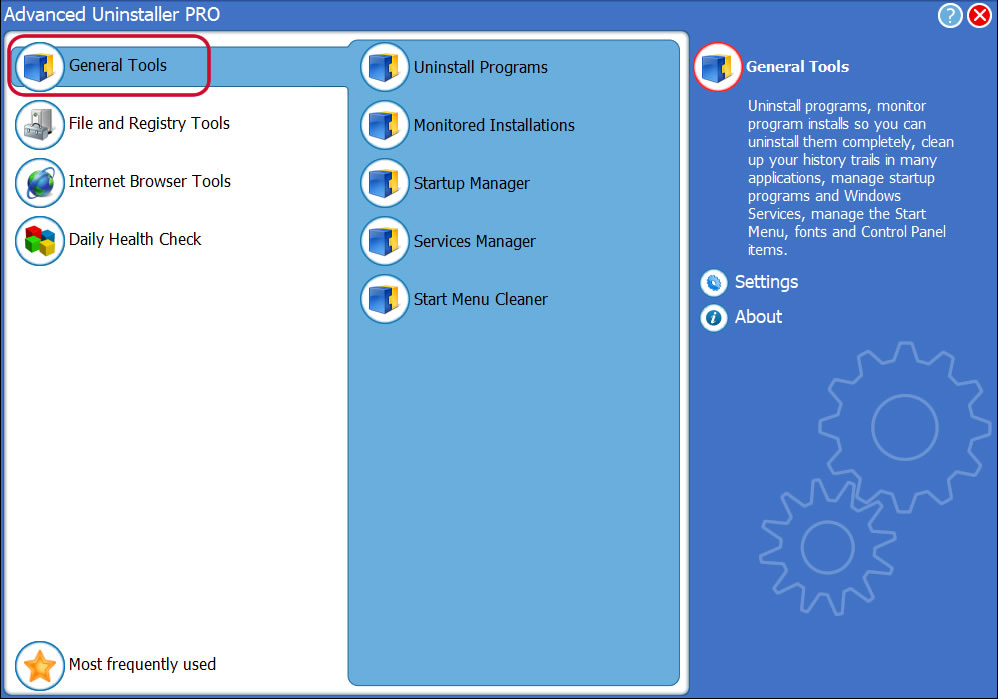
3. Press the General Tools category
Go to General Tools


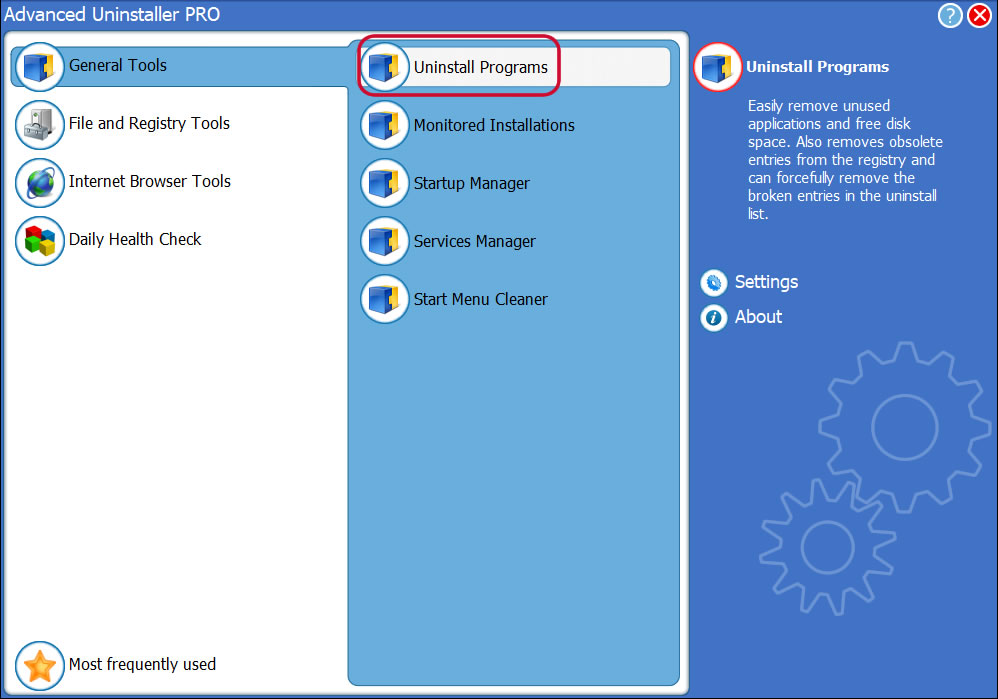
4. Activate the Uninstall Programs tool
Go to Uninstall Programs


5. A list of the programs existing on the computer will be made available to you

6. Scroll the list of programs until you locate Rescue Team 3 or simply click the Search field and type in "Rescue Team 3". If it is installed on your PC the Rescue Team 3 program will be found automatically. When you select Rescue Team 3 in the list of programs, the following data regarding the application is made available to you:


  • Safety rating (in the left lower corner). The star rating tells you the opinion other users have regarding Rescue Team 3, from "Highly recommended" to "Very dangerous".
  • Opinions by other users - Press the Read reviews button.
  • Details regarding the program you want to remove, by pressing the Properties button.
For instance you can see that for Rescue Team 3:


  • The publisher is: http://www.theplayingbay.com
  • The uninstall string is: C:\Program Files (x86)\Foxy Games\Rescue Team 3\uninstall.exe
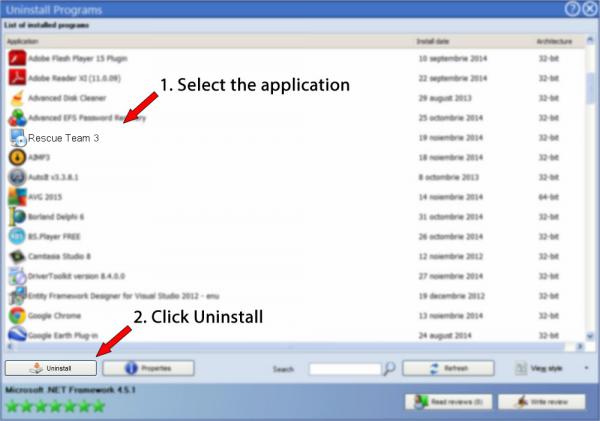
7. Click the Uninstall button. A confirmation dialog will show up. Confirm the removal by clicking the Uninstall button. Advanced Uninstaller PRO will then uninstall Rescue Team 3.
Uninstall Rescue Team 3


8. After removing Rescue Team 3, Advanced Uninstaller PRO will ask you to run an additional cleanup. Press Next to start the cleanup. All the items of Rescue Team 3 that have been left behind will be found and you will be asked if you want to delete them. By removing Rescue Team 3 using Advanced Uninstaller PRO, you can be sure that no registry items, files or directories are left behind on your disk.

Your system will remain clean, speedy and able to run without errors or problems.


Geographical user distribution

  • Windows 7 (6.1)
  • Windows XP (5.1)
  • Windows Vista (6.0)
  • Windows 8.1 (6.3)
  • 10.0
Software Application


Disclaimer

The text above is not a recommendation to remove Rescue Team 3 by Foxy Games from your PC, we are not saying that Rescue Team 3 by Foxy Games is not a good software application. This page only contains detailed info on how to remove Rescue Team 3 in case you decide this is what you want to do. The information above contains registry and disk entries that Advanced Uninstaller PRO discovered and classified as "leftovers" on other users' computers.

2017-02-23 / Written by Dan Armano for Advanced Uninstaller PRO

follow @danarm
Last update on: 2017-02-23 18:41:37.957