 ONfinity FreeClass
How to uninstall ONfinity FreeClass from your system
ONfinity FreeClass is a Windows application. Read more about how to remove it from your PC. It is developed by ONfinity. Go over here where you can read more on ONfinity. The application is often installed in the C:\Program Files\ONfinity\ONfinity FreeClass folder (same installation drive as Windows). The entire uninstall command line for ONfinity FreeClass is MsiExec.exe /I{C6047CF8-5BB5-4AD9-8780-CF57CCFDAA9F}. The application's main executable file has a size of 1.49 MB (1558360 bytes) on disk and is labeled FreeClass.exe.ONfinity FreeClass contains of the executables below. They occupy 2.17 MB (2279488 bytes) on disk.
- closeosk.exe (21.84 KB)
- FMouse.exe (43.05 KB)
- FMouseCom.exe (53.84 KB)
- FMouseHID.exe (81.84 KB)
- FreeClass.exe (1.49 MB)
- FreeKB.exe (60.00 KB)
- FreeRead.exe (376.00 KB)
- FreeSet.exe (45.84 KB)
- openosk.exe (21.84 KB)
The current web page applies to ONfinity FreeClass version 3.3.7.2 only. You can find below info on other releases of ONfinity FreeClass:
A way to remove ONfinity FreeClass from your PC with the help of Advanced Uninstaller PRO
ONfinity FreeClass is an application released by ONfinity. Sometimes, people want to uninstall this application. Sometimes this can be hard because uninstalling this by hand takes some know-how related to removing Windows programs manually. One of the best EASY manner to uninstall ONfinity FreeClass is to use Advanced Uninstaller PRO. Here is how to do this:1. If you don't have Advanced Uninstaller PRO already installed on your PC, install it. This is a good step because Advanced Uninstaller PRO is an efficient uninstaller and general tool to clean your system.
DOWNLOAD NOW
- navigate to Download Link
- download the setup by pressing the green DOWNLOAD button
- set up Advanced Uninstaller PRO
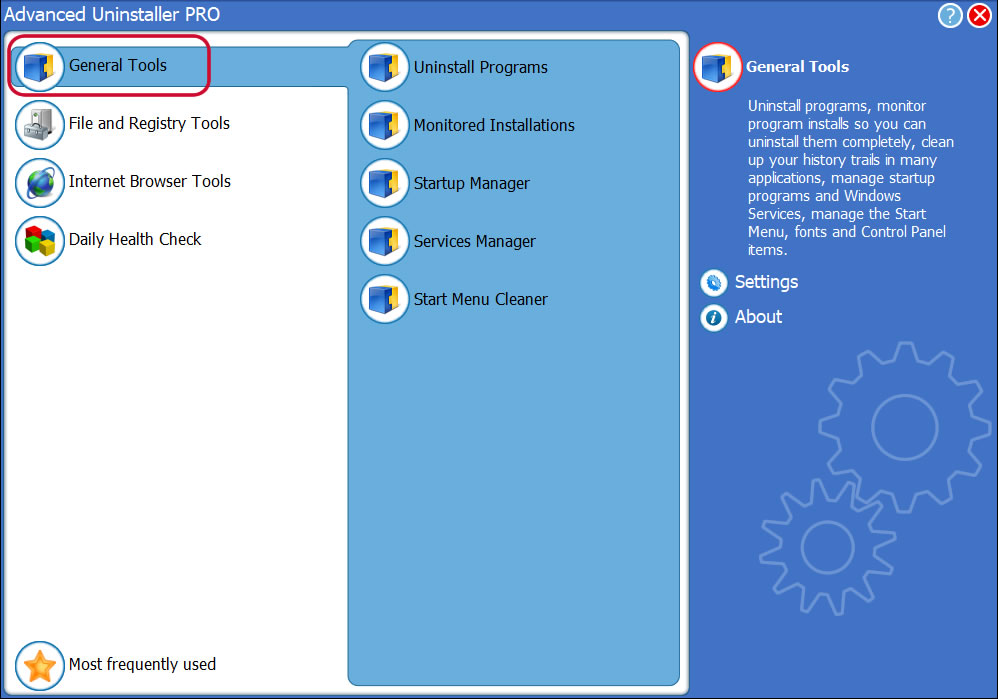
3. Press the General Tools category
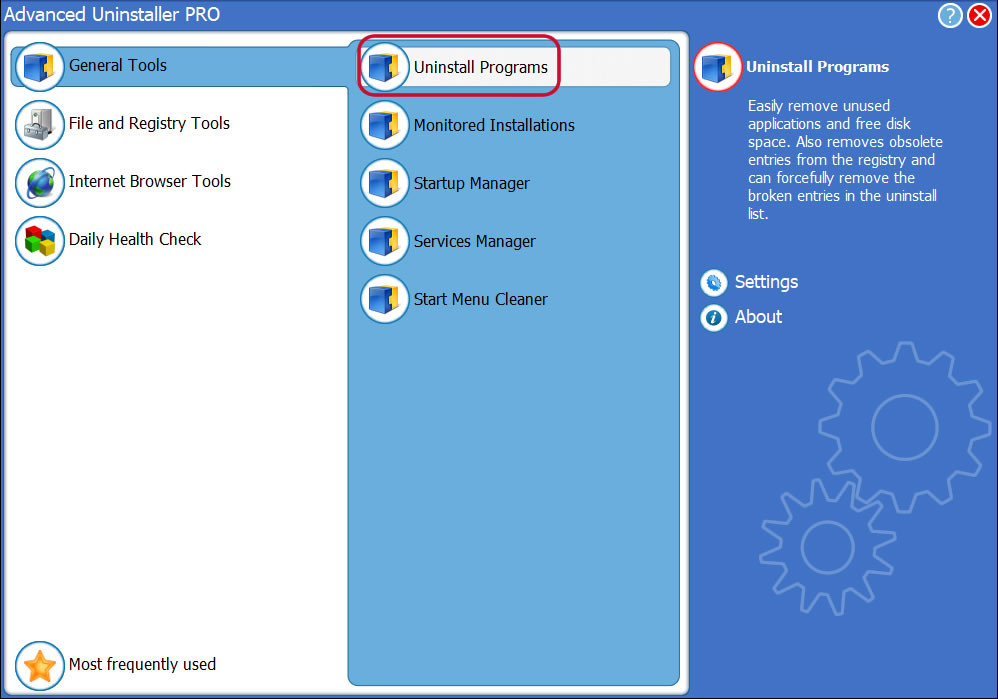
4. Activate the Uninstall Programs button
5. All the programs installed on the computer will be shown to you
6. Scroll the list of programs until you find ONfinity FreeClass or simply click the Search feature and type in "ONfinity FreeClass". If it exists on your system the ONfinity FreeClass app will be found very quickly. When you select ONfinity FreeClass in the list , some information about the program is available to you:
- Star rating (in the left lower corner). This tells you the opinion other people have about ONfinity FreeClass, ranging from "Highly recommended" to "Very dangerous".
- Reviews by other people - Press the Read reviews button.
- Details about the program you want to remove, by pressing the Properties button.

8. After removing ONfinity FreeClass, Advanced Uninstaller PRO will offer to run a cleanup. Click Next to start the cleanup. All the items of ONfinity FreeClass that have been left behind will be detected and you will be asked if you want to delete them. By uninstalling ONfinity FreeClass using Advanced Uninstaller PRO, you are assured that no Windows registry items, files or directories are left behind on your disk.
Your Windows system will remain clean, speedy and ready to take on new tasks.
Geographical user distribution


Disclaimer
The text above is not a recommendation to remove ONfinity FreeClass by ONfinity from your computer, we are not saying that ONfinity FreeClass by ONfinity is not a good application. This page simply contains detailed info on how to remove ONfinity FreeClass in case you want to. Here you can find registry and disk entries that our application Advanced Uninstaller PRO discovered and classified as "leftovers" on other users' computers.
2017-03-24 / Written by Andreea Kartman for Advanced Uninstaller PRO
follow @DeeaKartmanLast update on: 2017-03-24 00:17:35.350