 My Farm Life
A guide to uninstall My Farm Life from your PC
My Farm Life is a Windows application. Read more about how to uninstall it from your PC. The Windows release was developed by MyPlayCity, Inc.. More data about MyPlayCity, Inc. can be found here. Please follow http://www.MyPlayCity.com/ if you want to read more on My Farm Life on MyPlayCity, Inc.'s web page. The application is frequently found in the C:\Program Files (x86)\MyPlayCity.com\My Farm Life folder. Keep in mind that this path can differ being determined by the user's preference. The entire uninstall command line for My Farm Life is C:\Program Files (x86)\MyPlayCity.com\My Farm Life\unins000.exe. The application's main executable file is called My Farm Life.exe and its approximative size is 1.20 MB (1261696 bytes).My Farm Life installs the following the executables on your PC, occupying about 5.03 MB (5272730 bytes) on disk.
- engine.exe (416.00 KB)
- game.exe (114.00 KB)
- My Farm Life.exe (1.20 MB)
- PreLoader.exe (1.68 MB)
- unins000.exe (690.78 KB)
- framework.exe (973.63 KB)
The current page applies to My Farm Life version 1.0 alone. Some files and registry entries are typically left behind when you uninstall My Farm Life.
Folders remaining:
- C:\Program Files (x86)\MyPlayCity.com\My Farm Life
- C:\Users\%user%\AppData\Local\UGMgames\20000006\my-farm-life
- C:\Users\%user%\AppData\Roaming\aliasworlds\my farm life 2
The files below remain on your disk by My Farm Life when you uninstall it:
- C:\Program Files (x86)\MyPlayCity.com\My Farm Life\2_GameName.exe
- C:\Program Files (x86)\MyPlayCity.com\My Farm Life\bass.dll
- C:\Program Files (x86)\MyPlayCity.com\My Farm Life\bass_fx.dll
- C:\Program Files (x86)\MyPlayCity.com\My Farm Life\bassmix.dll
- C:\Program Files (x86)\MyPlayCity.com\My Farm Life\Big Farm Online.ico
- C:\Program Files (x86)\MyPlayCity.com\My Farm Life\Data\Config\config.ini
- C:\Program Files (x86)\MyPlayCity.com\My Farm Life\Data\Config\logo.ini
- C:\Program Files (x86)\MyPlayCity.com\My Farm Life\Data\Config\version.ini
- C:\Program Files (x86)\MyPlayCity.com\My Farm Life\Data\data.arf
- C:\Program Files (x86)\MyPlayCity.com\My Farm Life\Data\Menu\Custom\alawar.jpg
- C:\Program Files (x86)\MyPlayCity.com\My Farm Life\Data\Menu\Custom\aliasworlds.png
- C:\Program Files (x86)\MyPlayCity.com\My Farm Life\Data\minigames\mg_lasso.dll
- C:\Program Files (x86)\MyPlayCity.com\My Farm Life\Dreamfields.ico
- C:\Program Files (x86)\MyPlayCity.com\My Farm Life\Elvenar.ico
- C:\Program Files (x86)\MyPlayCity.com\My Farm Life\engine.exe
- C:\Program Files (x86)\MyPlayCity.com\My Farm Life\file_id.diz
- C:\Program Files (x86)\MyPlayCity.com\My Farm Life\Fishao Online.ico
- C:\Program Files (x86)\MyPlayCity.com\My Farm Life\game_icon.ico
- C:\Program Files (x86)\MyPlayCity.com\My Farm Life\Goodgame Empire Online.ico
- C:\Program Files (x86)\MyPlayCity.com\My Farm Life\homepage.url
- C:\Program Files (x86)\MyPlayCity.com\My Farm Life\install.lnk
- C:\Program Files (x86)\MyPlayCity.com\My Farm Life\install.url
- C:\Program Files (x86)\MyPlayCity.com\My Farm Life\Klondike Online.ico
- C:\Program Files (x86)\MyPlayCity.com\My Farm Life\Knights And Brides.ico
- C:\Program Files (x86)\MyPlayCity.com\My Farm Life\Lady Popular Fashion Arena.ico
- C:\Program Files (x86)\MyPlayCity.com\My Farm Life\Legends of Honor Online.ico
- C:\Program Files (x86)\MyPlayCity.com\My Farm Life\license.txt
- C:\Program Files (x86)\MyPlayCity.com\My Farm Life\lnchdata\mpclnch_cat.bmp
- C:\Program Files (x86)\MyPlayCity.com\My Farm Life\lnchdata\mpclnch_fon.bmp
- C:\Program Files (x86)\MyPlayCity.com\My Farm Life\lnchdata\mpclnch_fon2.bmp
- C:\Program Files (x86)\MyPlayCity.com\My Farm Life\lnchdata\mpclnch_loading.gif
- C:\Program Files (x86)\MyPlayCity.com\My Farm Life\lnchdata\mpclnch_play_active.bmp
- C:\Program Files (x86)\MyPlayCity.com\My Farm Life\lnchdata\myplaycitygametab.xpi
- C:\Program Files (x86)\MyPlayCity.com\My Farm Life\lnchdata\toolbar.ini
- C:\Program Files (x86)\MyPlayCity.com\My Farm Life\Microsoft.VC80.CRT.manifest
- C:\Program Files (x86)\MyPlayCity.com\My Farm Life\msvcp80.dll
- C:\Program Files (x86)\MyPlayCity.com\My Farm Life\msvcr80.dll
- C:\Program Files (x86)\MyPlayCity.com\My Farm Life\My Farm Life.exe
- C:\Program Files (x86)\MyPlayCity.com\My Farm Life\My Little Farmies.ico
- C:\Program Files (x86)\MyPlayCity.com\My Farm Life\MyFarmLife.dll
- C:\Program Files (x86)\MyPlayCity.com\My Farm Life\MyPlayCity.ico
- C:\Program Files (x86)\MyPlayCity.com\My Farm Life\MyPlayCity.url
- C:\Program Files (x86)\MyPlayCity.com\My Farm Life\pgame.ini
- C:\Program Files (x86)\MyPlayCity.com\My Farm Life\play.lnk
- C:\Program Files (x86)\MyPlayCity.com\My Farm Life\play.url
- C:\Program Files (x86)\MyPlayCity.com\My Farm Life\PlayOnlineGames.ico
- C:\Program Files (x86)\MyPlayCity.com\My Farm Life\PlayOnlineGames.url
- C:\Program Files (x86)\MyPlayCity.com\My Farm Life\PreLoader.exe
- C:\Program Files (x86)\MyPlayCity.com\My Farm Life\readme.txt
- C:\Program Files (x86)\MyPlayCity.com\My Farm Life\RenderBear.dll
- C:\Program Files (x86)\MyPlayCity.com\My Farm Life\Stormfall Online.ico
- C:\Program Files (x86)\MyPlayCity.com\My Farm Life\Tanki Online.ico
- C:\Program Files (x86)\MyPlayCity.com\My Farm Life\test.lnk
- C:\Program Files (x86)\MyPlayCity.com\My Farm Life\unins000.dat
- C:\Program Files (x86)\MyPlayCity.com\My Farm Life\unins000.exe
- C:\Program Files (x86)\MyPlayCity.com\My Farm Life\uninst.lnk
- C:\Program Files (x86)\MyPlayCity.com\My Farm Life\uninst.url
- C:\Program Files (x86)\MyPlayCity.com\My Farm Life\website.url
- C:\Users\%user%\AppData\Local\Packages\Microsoft.MicrosoftEdge_8wekyb3d8bbwe\AC\#!001\MicrosoftEdge\Cache\8SXZ5ATK\my-farm-life_small[1].jpg
- C:\Users\%user%\AppData\Local\Packages\Microsoft.Windows.Cortana_cw5n1h2txyewy\LocalState\AppIconCache\100\{7C5A40EF-A0FB-4BFC-874A-C0F2E0B9FA8E}_My Farm Life_launchgame_bfg
- C:\Users\%user%\AppData\Local\Packages\Microsoft.Windows.Cortana_cw5n1h2txyewy\LocalState\AppIconCache\100\{7C5A40EF-A0FB-4BFC-874A-C0F2E0B9FA8E}_My Farm Life_UnlockGame_bfg
- C:\Users\%user%\AppData\Local\Packages\Microsoft.Windows.Cortana_cw5n1h2txyewy\LocalState\AppIconCache\100\{7C5A40EF-A0FB-4BFC-874A-C0F2E0B9FA8E}_MyPlayCity_com_My Farm Life_license_txt
- C:\Users\%user%\AppData\Local\Packages\Microsoft.Windows.Cortana_cw5n1h2txyewy\LocalState\AppIconCache\100\{7C5A40EF-A0FB-4BFC-874A-C0F2E0B9FA8E}_MyPlayCity_com_My Farm Life_My Farm Life_exe
- C:\Users\%user%\AppData\Local\UGMgames\20000006\my-farm-life\bass.dll
- C:\Users\%user%\AppData\Local\UGMgames\20000006\my-farm-life\bass_fx.dll
- C:\Users\%user%\AppData\Local\UGMgames\20000006\my-farm-life\bassmix.dll
- C:\Users\%user%\AppData\Local\UGMgames\20000006\my-farm-life\Data\Config\config.ini
- C:\Users\%user%\AppData\Local\UGMgames\20000006\my-farm-life\Data\Config\logo.ini
- C:\Users\%user%\AppData\Local\UGMgames\20000006\my-farm-life\Data\Config\version.ini
- C:\Users\%user%\AppData\Local\UGMgames\20000006\my-farm-life\Data\data.arf
- C:\Users\%user%\AppData\Local\UGMgames\20000006\my-farm-life\Data\Menu\Custom\alawar.jpg
- C:\Users\%user%\AppData\Local\UGMgames\20000006\my-farm-life\Data\Menu\Custom\aliasworlds.png
- C:\Users\%user%\AppData\Local\UGMgames\20000006\my-farm-life\Data\Menu\Custom\partner.jpg
- C:\Users\%user%\AppData\Local\UGMgames\20000006\my-farm-life\Data\minigames\mg_lasso.dll
- C:\Users\%user%\AppData\Local\UGMgames\20000006\my-farm-life\file-details.json
- C:\Users\%user%\AppData\Local\UGMgames\20000006\my-farm-life\glcfg.date
- C:\Users\%user%\AppData\Local\UGMgames\20000006\my-farm-life\GLWorker.exe
- C:\Users\%user%\AppData\Local\UGMgames\20000006\my-farm-life\Microsoft.VC80.CRT.manifest
- C:\Users\%user%\AppData\Local\UGMgames\20000006\my-farm-life\msvcp80.dll
- C:\Users\%user%\AppData\Local\UGMgames\20000006\my-farm-life\msvcr80.dll
- C:\Users\%user%\AppData\Local\UGMgames\20000006\my-farm-life\MyFarmLife.dll
- C:\Users\%user%\AppData\Local\UGMgames\20000006\my-farm-life\MyFarmLife.ifn
- C:\Users\%user%\AppData\Local\UGMgames\20000006\my-farm-life\RenderBear.dll
- C:\Users\%user%\AppData\Local\UGMgames\20000006\my-farm-life\stdat.dat
- C:\Users\%user%\AppData\Roaming\aliasworlds\my farm life 2\config.ini
- C:\Users\%user%\AppData\Roaming\aliasworlds\my farm life 2\data.awgd
- C:\Users\%user%\AppData\Roaming\aliasworlds\my farm life 2\game.log
- C:\Users\%user%\AppData\Roaming\aliasworlds\my farm life 2\logic.log
- C:\Users\%user%\AppData\Roaming\aliasworlds\my farm life 2\screen\k\casual\01.jpg
- C:\Users\%user%\AppData\Roaming\aliasworlds\my farm life 2\screen\k\casual\02.jpg
- C:\Users\%user%\AppData\Roaming\aliasworlds\my farm life 2\screen\k\casual\03.jpg
- C:\Users\%user%\AppData\Roaming\aliasworlds\my farm life 2\screen\k\casual\04.jpg
- C:\Users\%user%\AppData\Roaming\aliasworlds\my farm life 2\screen\k\casual\05.jpg
- C:\Users\%user%\AppData\Roaming\aliasworlds\my farm life 2\screen\k\casual\06.jpg
- C:\Users\%user%\AppData\Roaming\aliasworlds\my farm life 2\screen\k\casual\07.jpg
- C:\Users\%user%\AppData\Roaming\aliasworlds\my farm life 2\screen\k\casual\08.jpg
- C:\Users\%user%\AppData\Roaming\aliasworlds\my farm life 2\screen\k\casual\09.jpg
- C:\Users\%user%\AppData\Roaming\aliasworlds\my farm life 2\screen\k\casual\10.jpg
- C:\Users\%user%\AppData\Roaming\aliasworlds\my farm life 2\screen\k\casual\11.jpg
- C:\Users\%user%\AppData\Roaming\aliasworlds\my farm life 2\screen\k\casual\current.jpg
How to remove My Farm Life from your computer using Advanced Uninstaller PRO
My Farm Life is a program released by MyPlayCity, Inc.. Sometimes, people decide to remove this application. Sometimes this is efortful because removing this manually requires some knowledge regarding removing Windows programs manually. One of the best SIMPLE practice to remove My Farm Life is to use Advanced Uninstaller PRO. Take the following steps on how to do this:1. If you don't have Advanced Uninstaller PRO already installed on your Windows PC, install it. This is a good step because Advanced Uninstaller PRO is an efficient uninstaller and all around utility to clean your Windows computer.
DOWNLOAD NOW
- navigate to Download Link
- download the program by clicking on the green DOWNLOAD button
- set up Advanced Uninstaller PRO
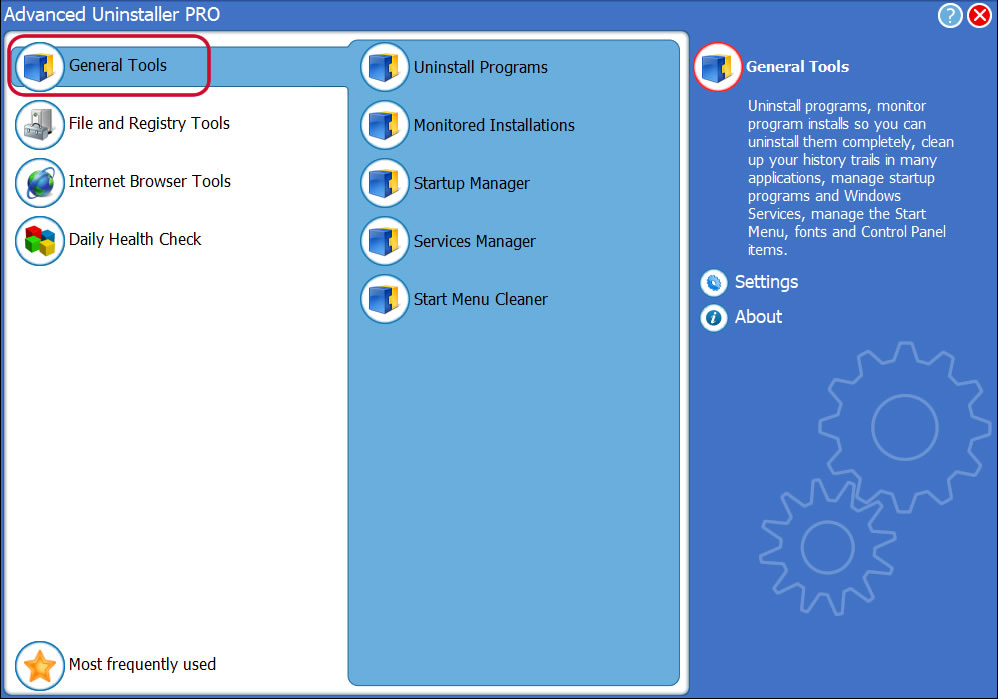
3. Click on the General Tools category
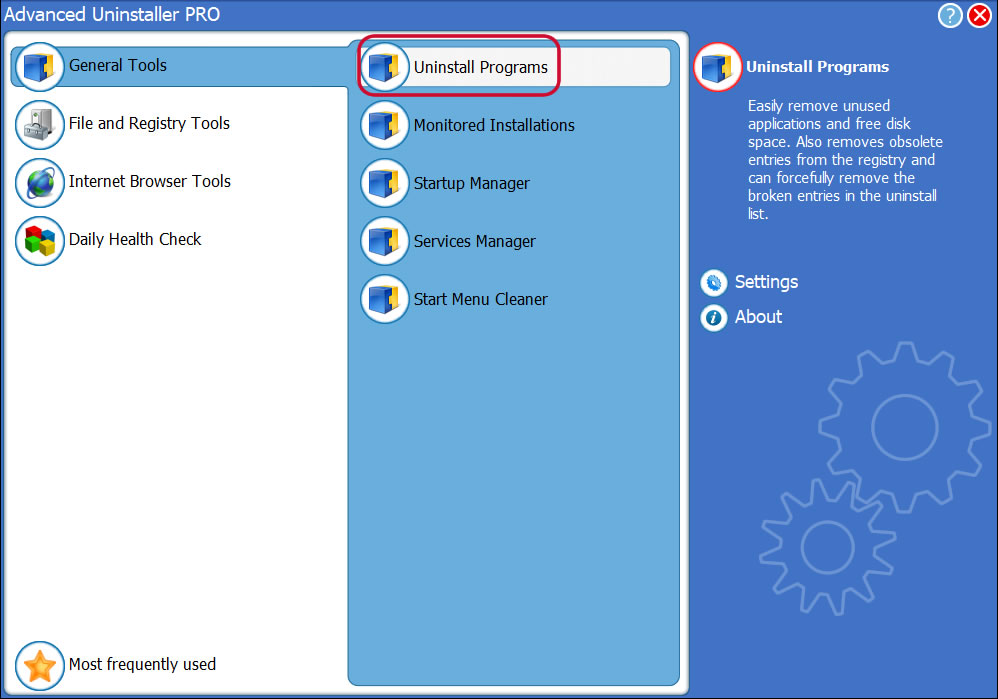
4. Activate the Uninstall Programs feature
5. A list of the programs installed on your PC will be shown to you
6. Scroll the list of programs until you locate My Farm Life or simply click the Search field and type in "My Farm Life". If it is installed on your PC the My Farm Life app will be found automatically. Notice that after you select My Farm Life in the list of applications, some information regarding the application is shown to you:
- Safety rating (in the left lower corner). The star rating tells you the opinion other users have regarding My Farm Life, from "Highly recommended" to "Very dangerous".
- Opinions by other users - Click on the Read reviews button.
- Technical information regarding the application you are about to remove, by clicking on the Properties button.
- The web site of the program is: http://www.MyPlayCity.com/
- The uninstall string is: C:\Program Files (x86)\MyPlayCity.com\My Farm Life\unins000.exe
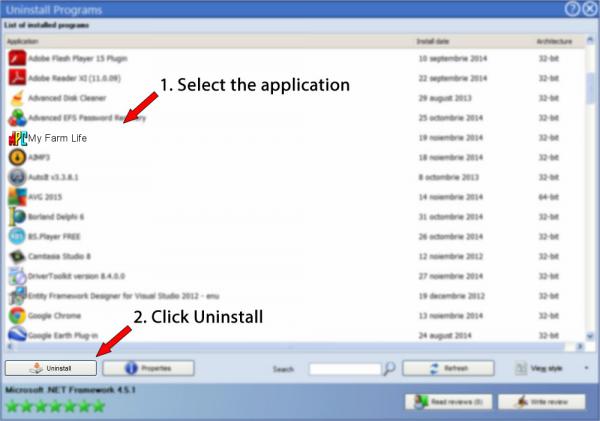
8. After removing My Farm Life, Advanced Uninstaller PRO will offer to run an additional cleanup. Press Next to proceed with the cleanup. All the items of My Farm Life which have been left behind will be found and you will be asked if you want to delete them. By uninstalling My Farm Life using Advanced Uninstaller PRO, you can be sure that no Windows registry items, files or directories are left behind on your PC.
Your Windows system will remain clean, speedy and able to run without errors or problems.
Geographical user distribution


Disclaimer
This page is not a recommendation to uninstall My Farm Life by MyPlayCity, Inc. from your computer, we are not saying that My Farm Life by MyPlayCity, Inc. is not a good application for your PC. This page only contains detailed info on how to uninstall My Farm Life in case you want to. The information above contains registry and disk entries that our application Advanced Uninstaller PRO discovered and classified as "leftovers" on other users' computers.
2016-06-22 / Written by Andreea Kartman for Advanced Uninstaller PRO
follow @DeeaKartmanLast update on: 2016-06-22 01:05:28.407