 Multi-Markets Trader - Desktop Terminal
A guide to uninstall Multi-Markets Trader - Desktop Terminal from your system
This web page is about Multi-Markets Trader - Desktop Terminal for Windows. Below you can find details on how to uninstall it from your computer. It is developed by ITS. Further information on ITS can be found here. Usually the Multi-Markets Trader - Desktop Terminal application is installed in the C:\Program Files (x86)\ITS\Multi-Markets Trader - Desktop Terminal folder, depending on the user's option during install. You can uninstall Multi-Markets Trader - Desktop Terminal by clicking on the Start menu of Windows and pasting the command line MsiExec.exe /X{12773C00-0A8C-4A8E-9B09-FCD8FA679019}. Note that you might receive a notification for administrator rights. The program's main executable file occupies 52.00 KB (53248 bytes) on disk and is named mmt-terminal.exe.Multi-Markets Trader - Desktop Terminal contains of the executables below. They take 253.00 KB (259072 bytes) on disk.
- mmt-terminal.exe (52.00 KB)
- updater.exe (201.00 KB)
The current page applies to Multi-Markets Trader - Desktop Terminal version 2.1.1 only. You can find below info on other releases of Multi-Markets Trader - Desktop Terminal:
A way to uninstall Multi-Markets Trader - Desktop Terminal from your PC with Advanced Uninstaller PRO
Multi-Markets Trader - Desktop Terminal is an application by ITS. Sometimes, people decide to uninstall it. Sometimes this can be efortful because doing this by hand takes some experience related to removing Windows applications by hand. The best SIMPLE practice to uninstall Multi-Markets Trader - Desktop Terminal is to use Advanced Uninstaller PRO. Here are some detailed instructions about how to do this:1. If you don't have Advanced Uninstaller PRO already installed on your system, add it. This is good because Advanced Uninstaller PRO is a very potent uninstaller and all around tool to maximize the performance of your computer.
DOWNLOAD NOW
- visit Download Link
- download the setup by pressing the DOWNLOAD NOW button
- set up Advanced Uninstaller PRO
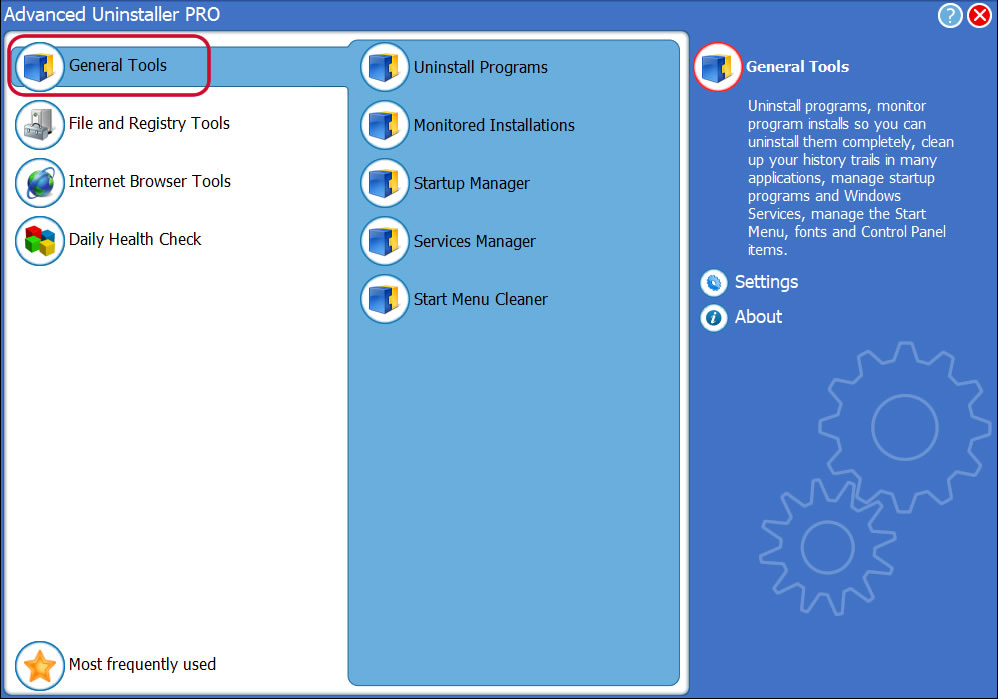
3. Press the General Tools button
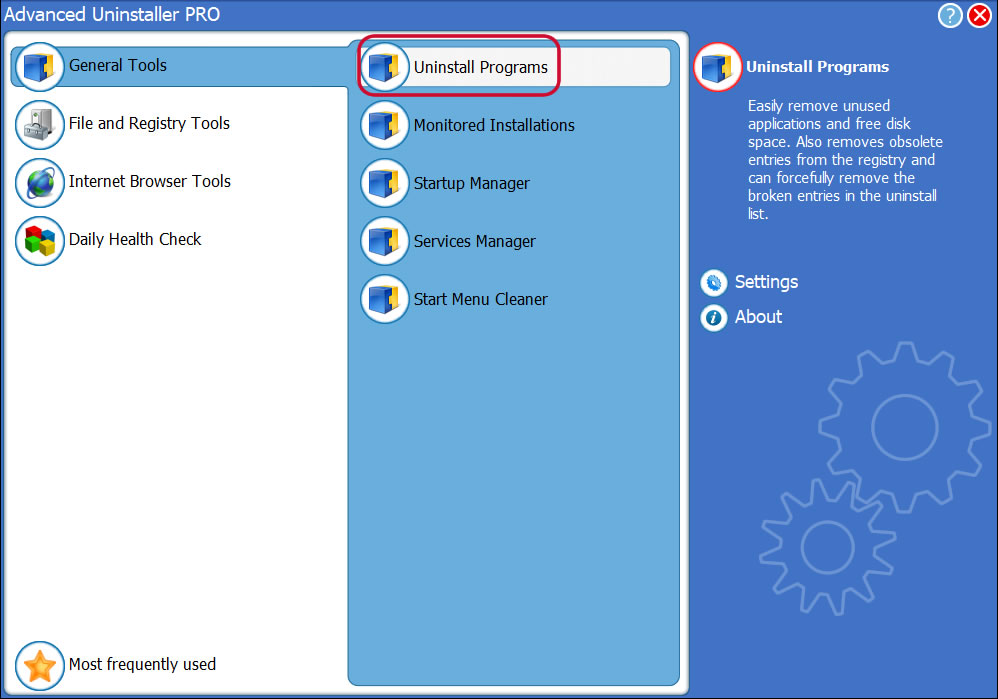
4. Activate the Uninstall Programs tool
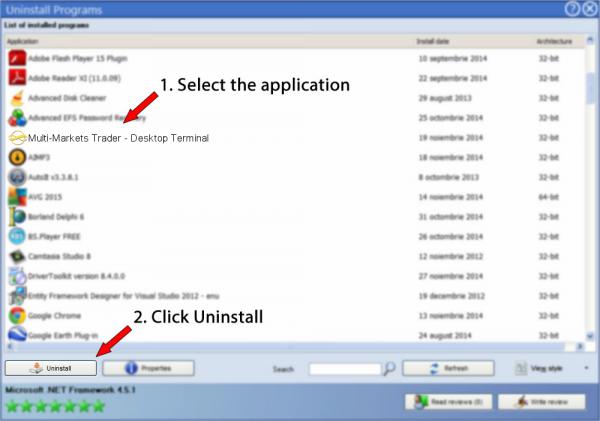
5. All the programs installed on the PC will be made available to you
6. Scroll the list of programs until you find Multi-Markets Trader - Desktop Terminal or simply click the Search field and type in "Multi-Markets Trader - Desktop Terminal". The Multi-Markets Trader - Desktop Terminal app will be found very quickly. Notice that when you select Multi-Markets Trader - Desktop Terminal in the list of programs, the following information about the program is available to you:
- Safety rating (in the left lower corner). This tells you the opinion other users have about Multi-Markets Trader - Desktop Terminal, ranging from "Highly recommended" to "Very dangerous".
- Opinions by other users - Press the Read reviews button.
- Technical information about the program you wish to remove, by pressing the Properties button.
8. After removing Multi-Markets Trader - Desktop Terminal, Advanced Uninstaller PRO will ask you to run an additional cleanup. Press Next to go ahead with the cleanup. All the items that belong Multi-Markets Trader - Desktop Terminal that have been left behind will be detected and you will be able to delete them. By removing Multi-Markets Trader - Desktop Terminal using Advanced Uninstaller PRO, you can be sure that no registry items, files or directories are left behind on your system.
Your PC will remain clean, speedy and ready to run without errors or problems.
Disclaimer
This page is not a piece of advice to remove Multi-Markets Trader - Desktop Terminal by ITS from your PC, we are not saying that Multi-Markets Trader - Desktop Terminal by ITS is not a good application. This page simply contains detailed info on how to remove Multi-Markets Trader - Desktop Terminal supposing you decide this is what you want to do. Here you can find registry and disk entries that our application Advanced Uninstaller PRO discovered and classified as "leftovers" on other users' computers.
2015-04-21 / Written by Daniel Statescu for Advanced Uninstaller PRO
follow @DanielStatescuLast update on: 2015-04-21 14:00:27.360