 Game Channels
A guide to uninstall Game Channels from your PC
Game Channels is a Windows application. Read below about how to remove it from your computer. It is written by WildTangent, Inc.. More information on WildTangent, Inc. can be seen here. The program is frequently installed in the C:\Program Files (x86)\WildTangent Games\Game Explorer Categories - genres directory. Take into account that this path can vary being determined by the user's decision. Game Channels's entire uninstall command line is C:\Program Files (x86)\WildTangent Games\Game Explorer Categories - genres\Uninstall.exe. The program's main executable file is labeled provider.exe and it has a size of 322.44 KB (330176 bytes).Game Channels is composed of the following executables which take 684.83 KB (701270 bytes) on disk:
- provider.exe (322.44 KB)
- Uninstall.exe (362.40 KB)
The current web page applies to Game Channels version 8.1.0.17 only. For more Game Channels versions please click below:
...click to view all...
After the uninstall process, the application leaves leftovers on the PC. Some of these are shown below.
Generally the following registry keys will not be cleaned:
- HKEY_LOCAL_MACHINE\Software\Microsoft\Windows\CurrentVersion\Uninstall\WildTangentGameProvider-acer-genres
How to uninstall Game Channels from your PC with the help of Advanced Uninstaller PRO
Game Channels is a program marketed by the software company WildTangent, Inc.. Some computer users try to remove this program. This can be troublesome because doing this by hand takes some skill regarding removing Windows programs manually. The best EASY way to remove Game Channels is to use Advanced Uninstaller PRO. Here are some detailed instructions about how to do this:1. If you don't have Advanced Uninstaller PRO on your Windows PC, install it. This is good because Advanced Uninstaller PRO is a very useful uninstaller and all around utility to take care of your Windows system.
DOWNLOAD NOW
- navigate to Download Link
- download the setup by clicking on the green DOWNLOAD button
- install Advanced Uninstaller PRO
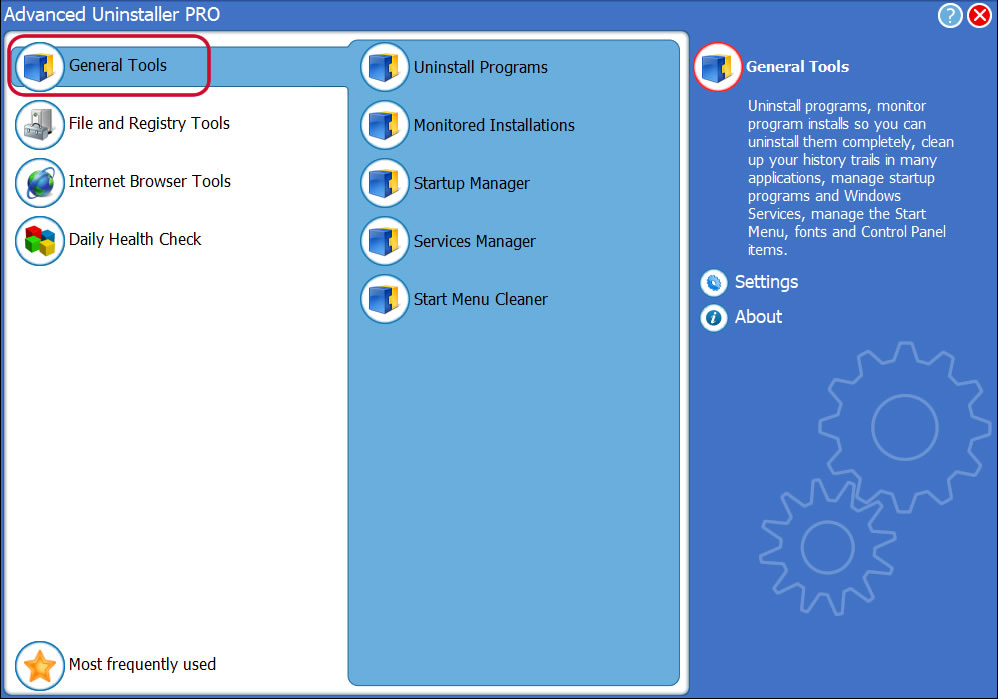
3. Click on the General Tools category
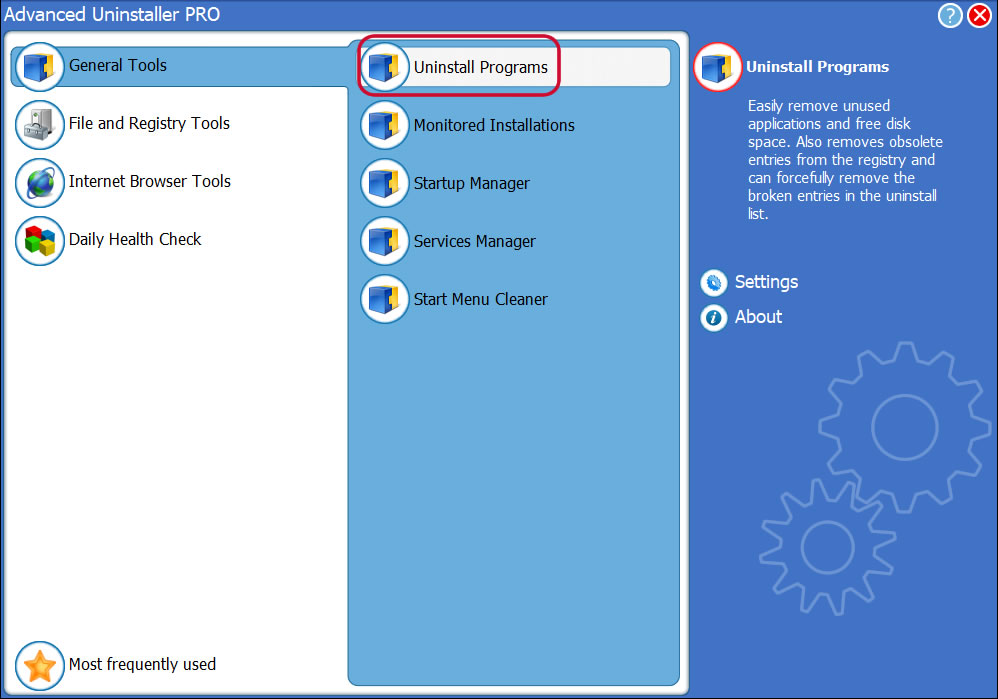
4. Press the Uninstall Programs button
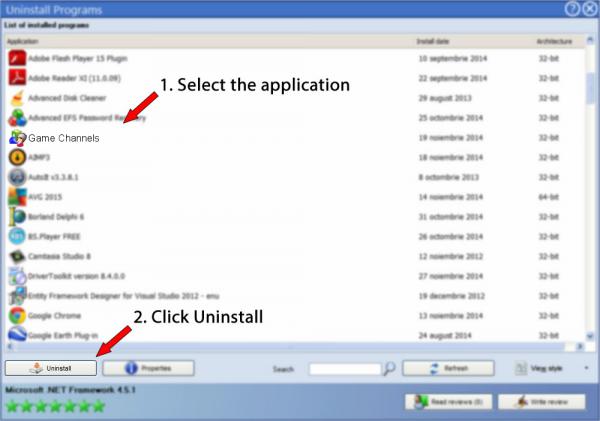
5. A list of the programs installed on the PC will appear
6. Navigate the list of programs until you locate Game Channels or simply activate the Search feature and type in "Game Channels". The Game Channels application will be found very quickly. When you click Game Channels in the list , some data about the program is available to you:
- Safety rating (in the lower left corner). The star rating tells you the opinion other people have about Game Channels, ranging from "Highly recommended" to "Very dangerous".
- Opinions by other people - Click on the Read reviews button.
- Technical information about the program you want to uninstall, by clicking on the Properties button.
8. After uninstalling Game Channels, Advanced Uninstaller PRO will ask you to run a cleanup. Click Next to perform the cleanup. All the items that belong Game Channels that have been left behind will be detected and you will be able to delete them. By removing Game Channels with Advanced Uninstaller PRO, you are assured that no registry items, files or directories are left behind on your PC.
Your system will remain clean, speedy and able to run without errors or problems.
Geographical user distribution


Disclaimer
The text above is not a piece of advice to remove Game Channels by WildTangent, Inc. from your PC, we are not saying that Game Channels by WildTangent, Inc. is not a good application. This text only contains detailed instructions on how to remove Game Channels in case you want to. Here you can find registry and disk entries that Advanced Uninstaller PRO stumbled upon and classified as "leftovers" on other users' computers.
2016-06-20 / Written by Dan Armano for Advanced Uninstaller PRO
follow @danarmLast update on: 2016-06-20 18:54:19.917