 FotoWorks XL 2
A way to uninstall FotoWorks XL 2 from your computer
This info is about FotoWorks XL 2 for Windows. Below you can find details on how to uninstall it from your computer. The Windows version was developed by IN MEDIAKG TI. More data about IN MEDIAKG TI can be seen here. Click on http://www.mediakg.de to get more information about FotoWorks XL 2 on IN MEDIAKG TI's website. The application is usually placed in the C:\Program Files (x86)\FotoWorksXL_2 directory (same installation drive as Windows). You can remove FotoWorks XL 2 by clicking on the Start menu of Windows and pasting the command line C:\Program Files (x86)\FotoWorksXL_2\unins000.exe. Keep in mind that you might get a notification for admin rights. The program's main executable file is called FotoWorksXL.exe and occupies 10.00 MB (10489904 bytes).FotoWorks XL 2 contains of the executables below. They occupy 11.68 MB (12243160 bytes) on disk.
- FotoWorksXL.exe (10.00 MB)
- unins000.exe (1.03 MB)
- Update_Execute.exe (658.62 KB)
The information on this page is only about version 2 of FotoWorks XL 2. If you are manually uninstalling FotoWorks XL 2 we suggest you to verify if the following data is left behind on your PC.
Folders remaining:
- C:\Users\%user%\AppData\Roaming\Microsoft\Windows\Start Menu\Programs\FotoWorks XL 2
Usually, the following files remain on disk:
- C:\Users\%user%\AppData\Roaming\Microsoft\Windows\Start Menu\Programs\FotoWorks XL 2\FotoWorks XL 2 on the Web.lnk
- C:\Users\%user%\AppData\Roaming\Microsoft\Windows\Start Menu\Programs\FotoWorks XL 2\FotoWorks XL 2.lnk
- C:\Users\%user%\AppData\Roaming\Microsoft\Windows\Start Menu\Programs\FotoWorks XL 2\More products from IN MEDIAKG TI.lnk
- C:\Users\%user%\AppData\Roaming\Microsoft\Windows\Start Menu\Programs\FotoWorks XL 2\Uninstall FotoWorks XL 2.lnk
Use regedit.exe to manually remove from the Windows Registry the data below:
- HKEY_LOCAL_MACHINE\Software\Microsoft\Windows\CurrentVersion\Uninstall\FotoWorks XL 2_is1
Additional values that you should delete:
- HKEY_CLASSES_ROOT\Local Settings\Software\Microsoft\Windows\Shell\MuiCache\E:\installed\FotoWorksXL_2\Activation.exe
A way to uninstall FotoWorks XL 2 from your computer using Advanced Uninstaller PRO
FotoWorks XL 2 is an application marketed by the software company IN MEDIAKG TI. Sometimes, computer users decide to erase this application. Sometimes this is troublesome because performing this by hand requires some advanced knowledge regarding PCs. One of the best QUICK practice to erase FotoWorks XL 2 is to use Advanced Uninstaller PRO. Here are some detailed instructions about how to do this:1. If you don't have Advanced Uninstaller PRO on your Windows PC, add it. This is a good step because Advanced Uninstaller PRO is a very useful uninstaller and all around utility to maximize the performance of your Windows computer.
DOWNLOAD NOW
- visit Download Link
- download the setup by pressing the green DOWNLOAD button
- install Advanced Uninstaller PRO
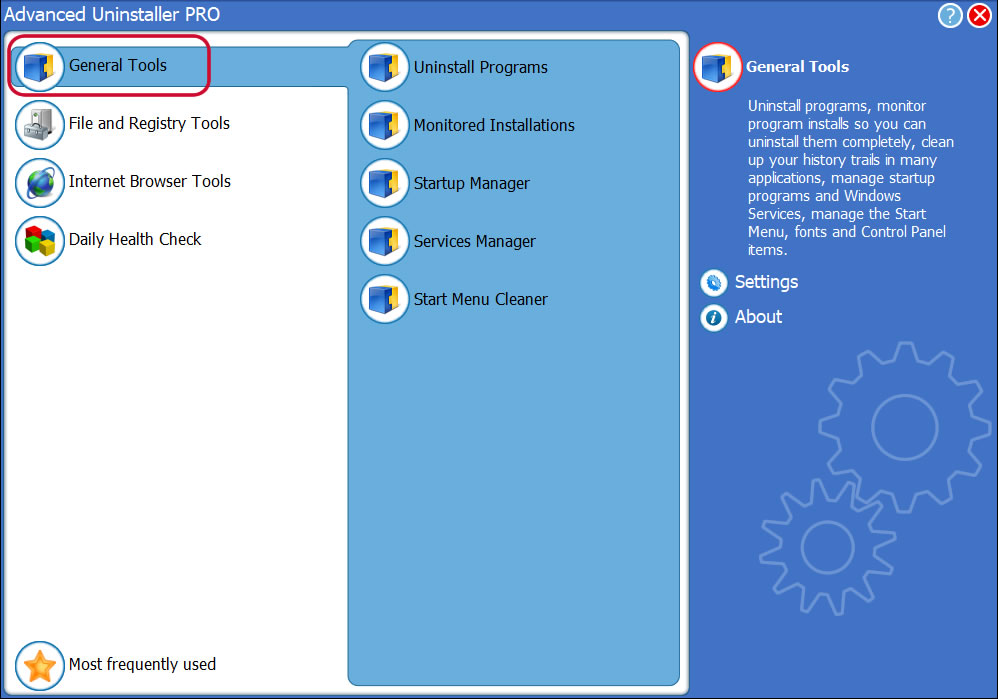
3. Click on the General Tools category
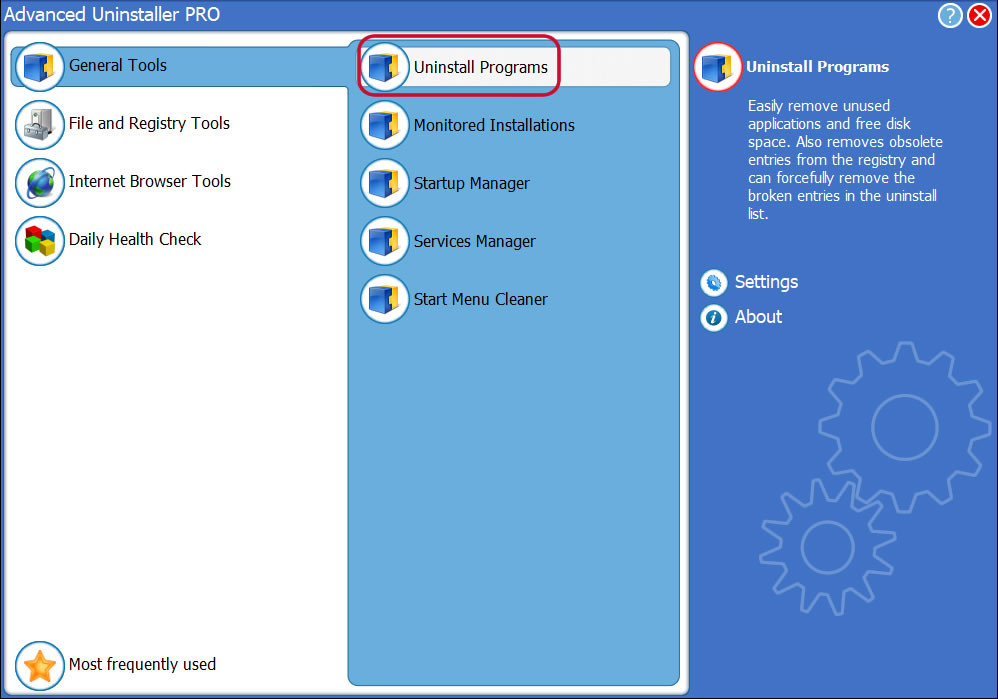
4. Click on the Uninstall Programs feature
5. All the applications existing on the PC will be shown to you
6. Navigate the list of applications until you find FotoWorks XL 2 or simply click the Search feature and type in "FotoWorks XL 2". If it exists on your system the FotoWorks XL 2 application will be found automatically. After you select FotoWorks XL 2 in the list of apps, some data about the program is shown to you:
- Star rating (in the left lower corner). This tells you the opinion other users have about FotoWorks XL 2, ranging from "Highly recommended" to "Very dangerous".
- Reviews by other users - Click on the Read reviews button.
- Technical information about the application you wish to remove, by pressing the Properties button.
- The publisher is: http://www.mediakg.de
- The uninstall string is: C:\Program Files (x86)\FotoWorksXL_2\unins000.exe

8. After removing FotoWorks XL 2, Advanced Uninstaller PRO will ask you to run a cleanup. Click Next to start the cleanup. All the items of FotoWorks XL 2 which have been left behind will be found and you will be asked if you want to delete them. By uninstalling FotoWorks XL 2 with Advanced Uninstaller PRO, you are assured that no Windows registry items, files or folders are left behind on your computer.
Your Windows system will remain clean, speedy and able to take on new tasks.
Geographical user distribution


Disclaimer
This page is not a recommendation to uninstall FotoWorks XL 2 by IN MEDIAKG TI from your computer, we are not saying that FotoWorks XL 2 by IN MEDIAKG TI is not a good application for your PC. This page simply contains detailed info on how to uninstall FotoWorks XL 2 supposing you decide this is what you want to do. The information above contains registry and disk entries that Advanced Uninstaller PRO stumbled upon and classified as "leftovers" on other users' computers.
2016-06-19 / Written by Andreea Kartman for Advanced Uninstaller PRO
follow @DeeaKartmanLast update on: 2016-06-19 13:05:10.677