 DriverMax 3
A way to uninstall DriverMax 3 from your PC
This web page contains thorough information on how to uninstall DriverMax 3 for Windows. The Windows release was developed by Innovative Solutions. Further information on Innovative Solutions can be seen here. Please open http://www.innovative-sol.com/ if you want to read more on DriverMax 3 on Innovative Solutions's website. The program is usually located in the C:\Program Files\Innovative Solutions\DriverMax directory (same installation drive as Windows). C:\Program Files\Innovative Solutions\DriverMax\unins000.exe is the full command line if you want to remove DriverMax 3. DriverMax 3's main file takes around 9.06 MB (9504728 bytes) and its name is drivermax.exe.DriverMax 3 is comprised of the following executables which take 15.99 MB (16761659 bytes) on disk:
- drivermax.exe (9.06 MB)
- innostp.exe (1.01 MB)
- innoupd.exe (1.58 MB)
- rbk32.exe (13.98 KB)
- rbk64.exe (13.98 KB)
- stop_dmx.exe (396.48 KB)
- unins000.exe (666.36 KB)
- unins001.exe (1.04 MB)
- dpinst.exe (663.97 KB)
- dpinst.exe (1.06 MB)
- dpinst.exe (531.97 KB)
This data is about DriverMax 3 version 3 alone. After the uninstall process, the application leaves leftovers on the computer. Part_A few of these are listed below.
You should delete the folders below after you uninstall DriverMax 3:
- C:\Program Files\Innovative Solutions\DriverMax
Generally, the following files are left on disk:
- C:\Program Files\Innovative Solutions\DriverMax\devices.exe
- C:\Program Files\Innovative Solutions\DriverMax\DPInst\amd64\dpinst.exe
- C:\Program Files\Innovative Solutions\DriverMax\DPInst\ia64\dpinst.exe
- C:\Program Files\Innovative Solutions\DriverMax\DPInst\x86\dpinst.exe
- C:\Program Files\Innovative Solutions\DriverMax\DPInst\x86\dpinstmgr.exe
- C:\Program Files\Innovative Solutions\DriverMax\unins000.exe
- C:\Users\%user%\AppData\Roaming\Microsoft\Windows\Recent\DRIVERMAX.lnk
- C:\Users\%user%\AppData\Roaming\Microsoft\Windows\Recent\serial key drivermax.lnk
You will find in the Windows Registry that the following data will not be cleaned; remove them one by one using regedit.exe:
- HKEY_CURRENT_USER\Software\Innovative Solutions\DriverMax
- HKEY_LOCAL_MACHINE\Software\Innovative Solutions\DriverMax
- HKEY_LOCAL_MACHINE\Software\Microsoft\Windows\CurrentVersion\Uninstall\DMX3_is1
A way to delete DriverMax 3 with Advanced Uninstaller PRO
DriverMax 3 is a program by the software company Innovative Solutions. Frequently, people choose to remove it. This can be easier said than done because performing this manually requires some skill regarding removing Windows programs manually. One of the best SIMPLE way to remove DriverMax 3 is to use Advanced Uninstaller PRO. Here is how to do this:1. If you don't have Advanced Uninstaller PRO on your system, install it. This is good because Advanced Uninstaller PRO is a very potent uninstaller and all around tool to take care of your computer.
DOWNLOAD NOW
- go to Download Link
- download the setup by clicking on the DOWNLOAD NOW button
- set up Advanced Uninstaller PRO
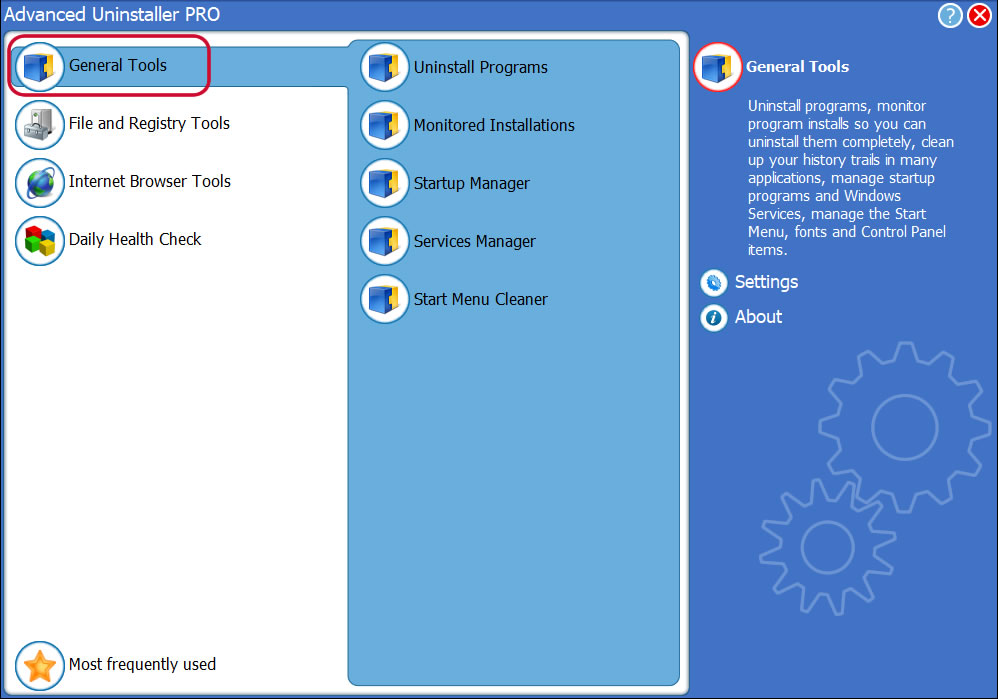
3. Press the General Tools category
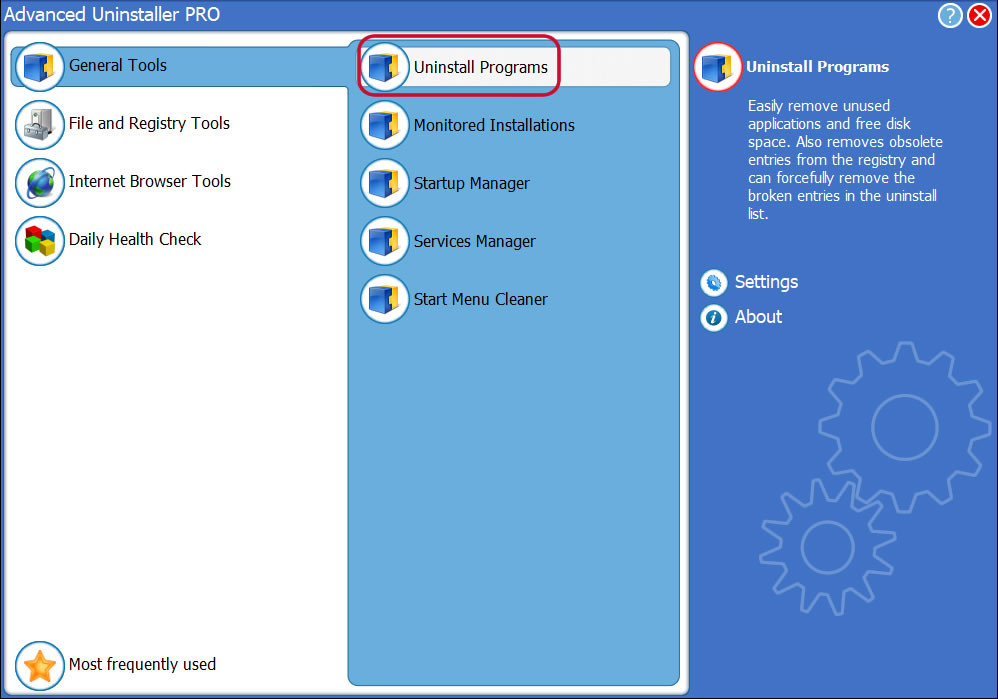
4. Press the Uninstall Programs feature
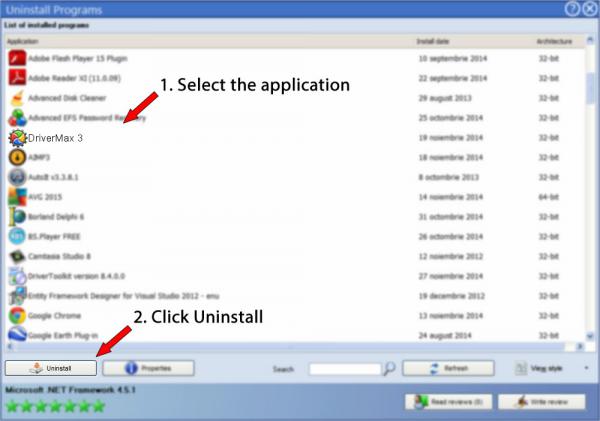
5. All the applications existing on the computer will appear
6. Navigate the list of applications until you find DriverMax 3 or simply activate the Search feature and type in "DriverMax 3". If it exists on your system the DriverMax 3 app will be found very quickly. When you click DriverMax 3 in the list of applications, the following information about the application is available to you:
- Safety rating (in the left lower corner). This explains the opinion other users have about DriverMax 3, ranging from "Highly recommended" to "Very dangerous".
- Opinions by other users - Press the Read reviews button.
- Technical information about the program you want to uninstall, by clicking on the Properties button.
- The software company is: http://www.innovative-sol.com/
- The uninstall string is: C:\Program Files\Innovative Solutions\DriverMax\unins000.exe
8. After removing DriverMax 3, Advanced Uninstaller PRO will offer to run an additional cleanup. Press Next to go ahead with the cleanup. All the items that belong DriverMax 3 which have been left behind will be found and you will be asked if you want to delete them. By uninstalling DriverMax 3 using Advanced Uninstaller PRO, you can be sure that no registry items, files or directories are left behind on your system.
Your system will remain clean, speedy and ready to serve you properly.
Geographical user distribution


Disclaimer
The text above is not a piece of advice to uninstall DriverMax 3 by Innovative Solutions from your PC, we are not saying that DriverMax 3 by Innovative Solutions is not a good application for your PC. This page only contains detailed info on how to uninstall DriverMax 3 in case you decide this is what you want to do. The information above contains registry and disk entries that other software left behind and Advanced Uninstaller PRO stumbled upon and classified as "leftovers" on other users' PCs.
2016-06-21 / Written by Andreea Kartman for Advanced Uninstaller PRO
follow @DeeaKartmanLast update on: 2016-06-21 01:21:57.347