 Acer Crystal Eye Webcam
A way to uninstall Acer Crystal Eye Webcam from your computer
This web page contains detailed information on how to remove Acer Crystal Eye Webcam for Windows. It was coded for Windows by Acer Crystal Eye Webcam. Take a look here for more info on Acer Crystal Eye Webcam. The application is frequently located in the C:\Program Files\InstallShield Installation Information\{DD1DED37-2486-4F56-8F89-56AA814003F5} directory. Take into account that this path can differ being determined by the user's decision. Acer Crystal Eye Webcam's complete uninstall command line is C:\Program Files\InstallShield Installation Information\{DD1DED37-2486-4F56-8F89-56AA814003F5}\SETUP.exe -runfromtemp -l0x0009 -removeonly. Acer Crystal Eye Webcam's primary file takes around 444.92 KB (455600 bytes) and is named setup.exe.The executables below are part of Acer Crystal Eye Webcam. They take about 444.92 KB (455600 bytes) on disk.
- setup.exe (444.92 KB)
The information on this page is only about version 2.0.0.14 of Acer Crystal Eye Webcam. Click on the links below for other Acer Crystal Eye Webcam versions:
- 7.96.701.05
- 2.0.0.5
- 2.0.0.8
- 7.96.701.03
- 2.0.0.17
- 2.0.0.9
- 7.96.701.04
- 2.0.0.21
- 2.0.0.20
- 7.96.701.06
- 2.0.0.16
- 7.96.701.07
- 2.0.0.7
Some files and registry entries are typically left behind when you uninstall Acer Crystal Eye Webcam.
You will find in the Windows Registry that the following data will not be cleaned; remove them one by one using regedit.exe:
- HKEY_LOCAL_MACHINE\Software\Acer Crystal Eye Webcam
- HKEY_LOCAL_MACHINE\Software\Microsoft\Windows\CurrentVersion\Uninstall\{DD1DED37-2486-4F56-8F89-56AA814003F5}
How to remove Acer Crystal Eye Webcam from your computer with Advanced Uninstaller PRO
Acer Crystal Eye Webcam is an application offered by the software company Acer Crystal Eye Webcam. Frequently, computer users decide to remove it. Sometimes this is troublesome because performing this manually requires some experience related to PCs. One of the best EASY way to remove Acer Crystal Eye Webcam is to use Advanced Uninstaller PRO. Here is how to do this:1. If you don't have Advanced Uninstaller PRO already installed on your Windows system, install it. This is good because Advanced Uninstaller PRO is the best uninstaller and all around utility to maximize the performance of your Windows system.
DOWNLOAD NOW
- visit Download Link
- download the program by pressing the DOWNLOAD button
- set up Advanced Uninstaller PRO
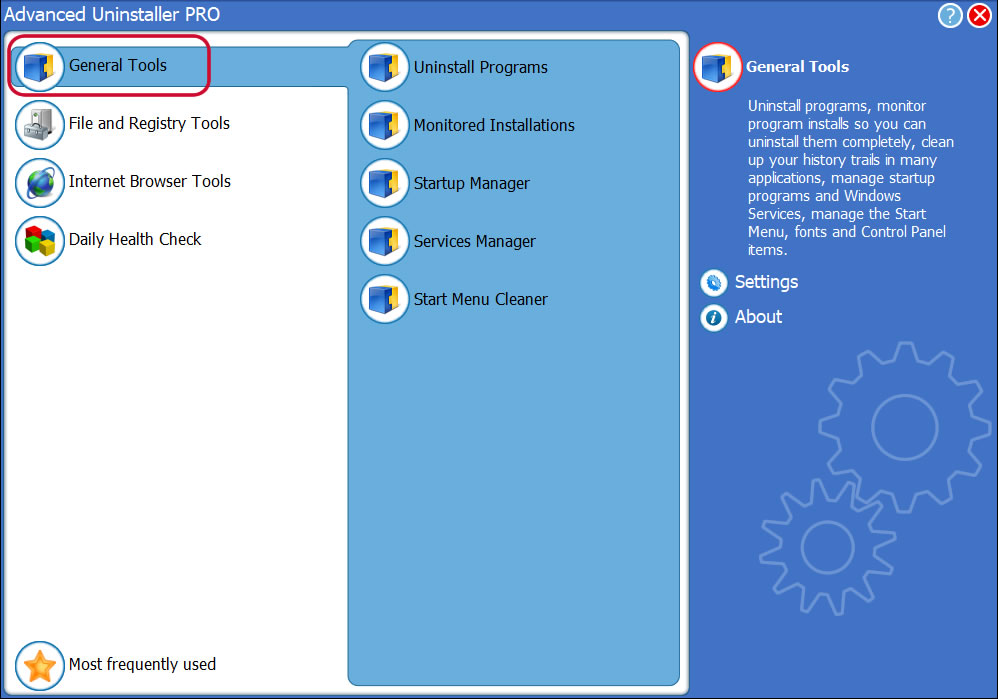
3. Click on the General Tools category
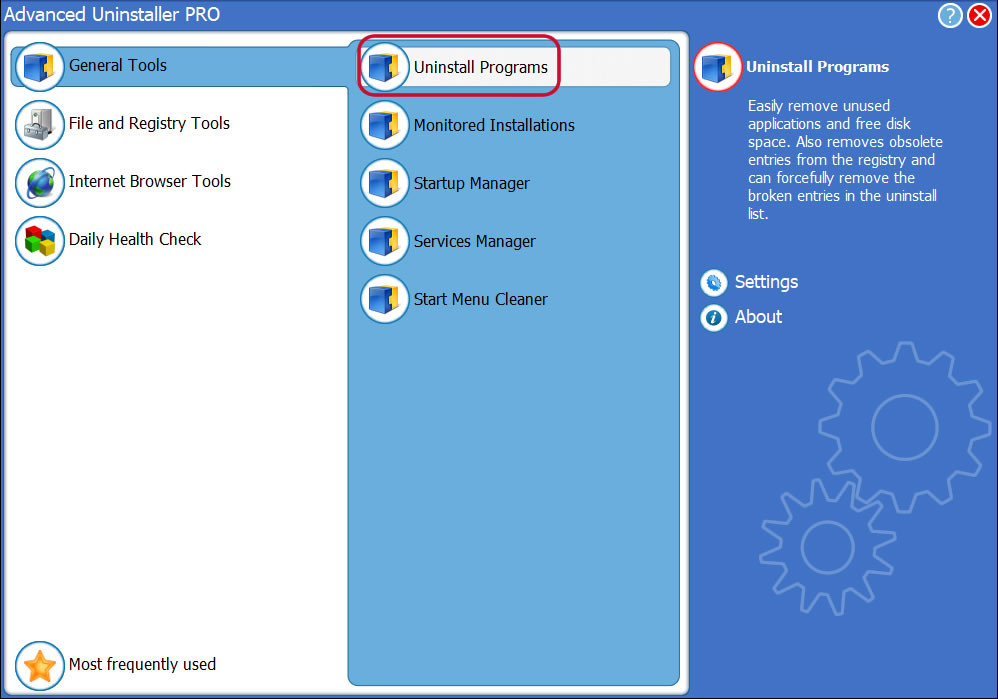
4. Press the Uninstall Programs feature
5. All the programs existing on the PC will appear
6. Scroll the list of programs until you find Acer Crystal Eye Webcam or simply activate the Search feature and type in "Acer Crystal Eye Webcam". The Acer Crystal Eye Webcam app will be found very quickly. When you select Acer Crystal Eye Webcam in the list , the following information regarding the program is made available to you:
- Star rating (in the lower left corner). This explains the opinion other users have regarding Acer Crystal Eye Webcam, from "Highly recommended" to "Very dangerous".
- Reviews by other users - Click on the Read reviews button.
- Technical information regarding the application you are about to remove, by pressing the Properties button.
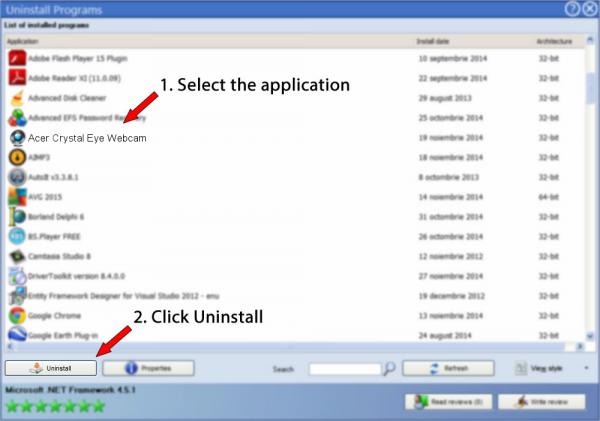
8. After removing Acer Crystal Eye Webcam, Advanced Uninstaller PRO will ask you to run an additional cleanup. Press Next to perform the cleanup. All the items that belong Acer Crystal Eye Webcam that have been left behind will be detected and you will be asked if you want to delete them. By removing Acer Crystal Eye Webcam using Advanced Uninstaller PRO, you are assured that no registry entries, files or directories are left behind on your PC.
Your computer will remain clean, speedy and ready to run without errors or problems.
Geographical user distribution


Disclaimer
This page is not a piece of advice to remove Acer Crystal Eye Webcam by Acer Crystal Eye Webcam from your PC, we are not saying that Acer Crystal Eye Webcam by Acer Crystal Eye Webcam is not a good application for your computer. This page only contains detailed info on how to remove Acer Crystal Eye Webcam supposing you want to. The information above contains registry and disk entries that Advanced Uninstaller PRO discovered and classified as "leftovers" on other users' PCs.
2016-07-19 / Written by Andreea Kartman for Advanced Uninstaller PRO
follow @DeeaKartmanLast update on: 2016-07-18 23:09:47.283